
Refari
How to add a Searchable Dropdown question (e.g. Country, State or City)
https://help.refari.work/knowledge-base/article/how-to-add-a-searchable-dropdown-question-e-g-country-state-or-city
This article explains the Searchable dropdown answer type for your screener questions, and how to use it to add fields like Country, State or City to your application form. A screener question is an extra question an applicant answers when they apply for one of your jobs, so you can capture information that would not normally be on a CV. The Searchable dropdown lets the applicant start typing and pick from a list you define, which is ideal when that list is long.
This guide assumes you already know the basics of creating screener questions. If you are new to them, start with the full walkthrough here: How to create screener questions in Refari ↗
What is a Searchable dropdown question?
A Searchable dropdown shows the applicant a single field where they start typing, and the matching options from your list appear for them to choose. It is one of the answer types you can pick when building a question, alongside Text, Numeric, Heading, List, File, Date and Phone.
It is similar to the existing List answer type, but better suited to long lists. A List shows every option on screen as radio buttons or tick boxes, which works well for a handful of choices. A Searchable dropdown keeps the form tidy and lets the applicant type to filter, which is far easier when there are dozens of options such as countries, states, cities, industries or skills.
Adding a Searchable dropdown question
Questions are created under "Tools > Question Config". Click the + Add button to create a new question, then follow the steps below.
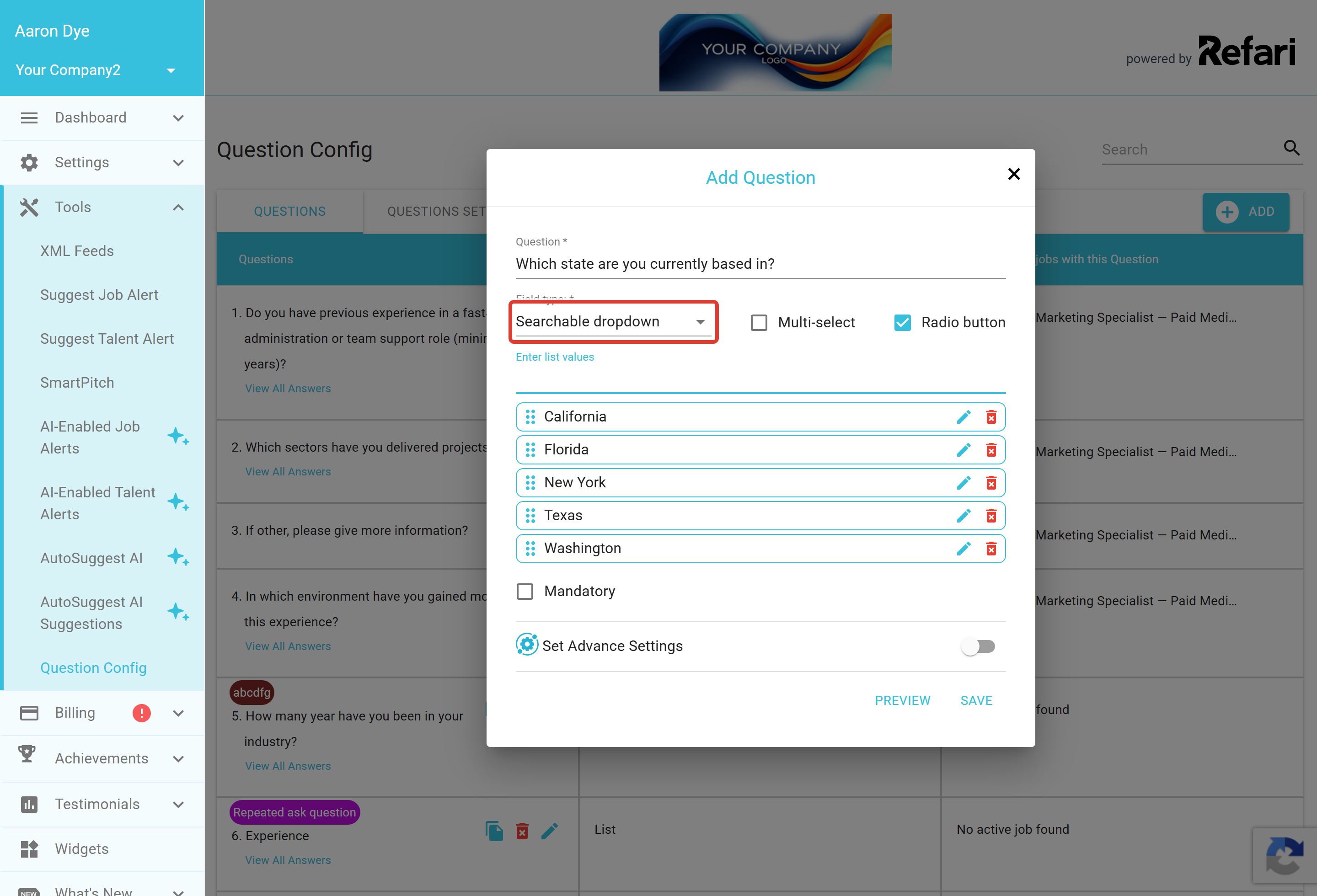
Step 1: Choose the Searchable dropdown field type
Type your question (for example, "Which state are you based in?") and set the Field type to Searchable dropdown.
Step 2: Enter your list of options
In the Enter list values box, add each option in turn. Type a value and press Enter (or separate values with a comma), and it is added to the list. You can:
- Reorder options by dragging the handle on the left of each one.
- Edit an option by clicking its edit icon, then pressing Enter to save.
- Remove an option with its delete icon.
Step 3: Choose single or multiple answers, and whether it is mandatory
Decide how many answers the applicant can give:
- Leave Multi-select unticked (the default, single answer) so the applicant picks one option. This is the right choice for Country, State or City.
- Tick Multi-select to let the applicant choose several options, which then appear as removable chips.
Tick Mandatory if the applicant must answer before they can submit their application.
What the applicant sees
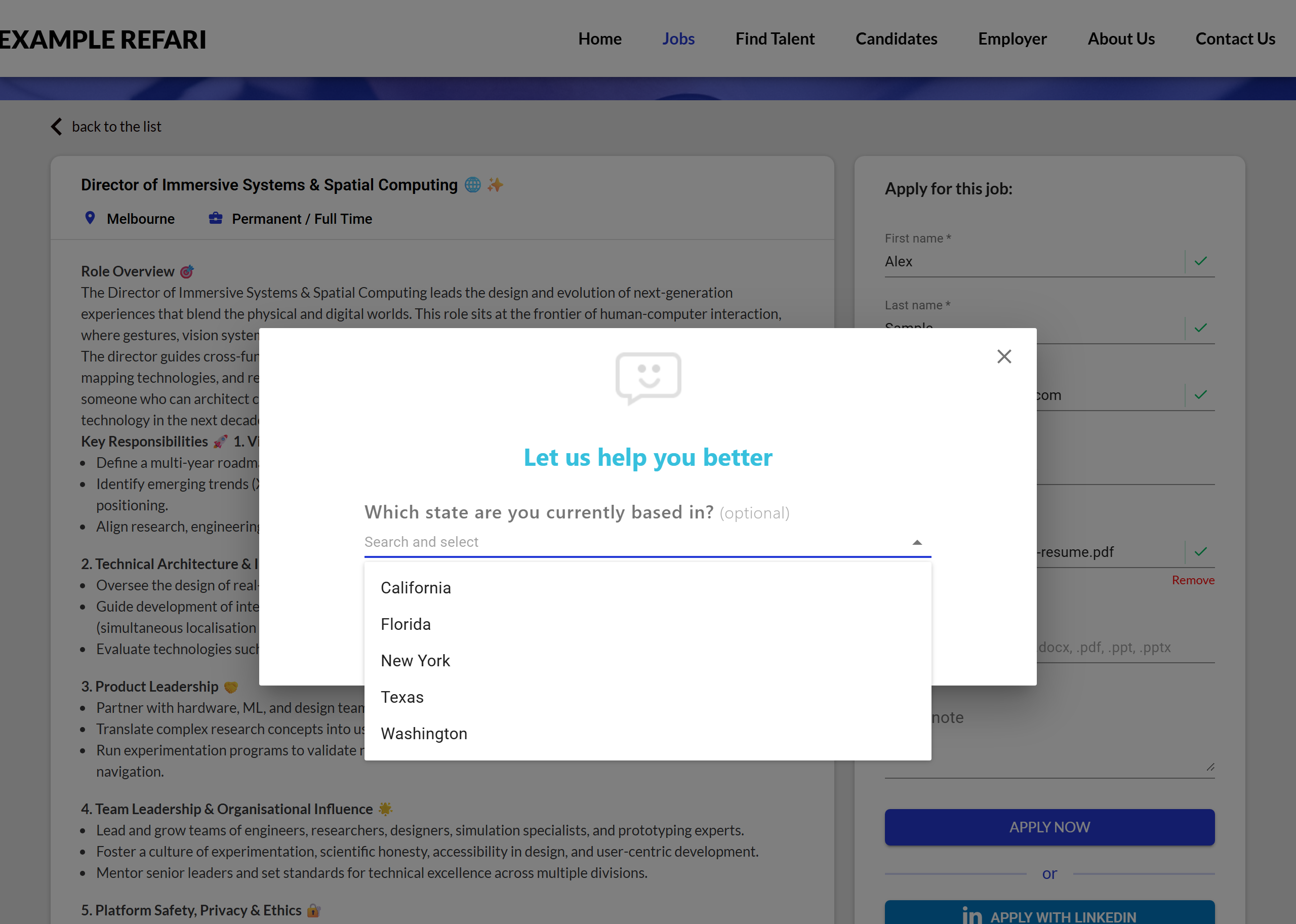
When an applicant applies for a job that has this question attached, the Searchable dropdown appears as a field prompting them to Search and select. They start typing and the matching options from your list filter down, then they pick one (or several, if you allowed multiple answers). As with all screener questions, only three questions are shown per page so the form never feels overwhelming.
Example: capturing Country, State and City
Say you want every applicant to tell you their location. You would create three Searchable dropdown questions, one for each field:
- A Country question, with your list of countries as the options.
- A State or Region question, with the relevant states or regions.
- A City question, with the cities you want to offer.
Leave each one as a single answer, and tick Mandatory on the fields you need every applicant to complete. Because the applicant types to filter, even a long list of cities stays quick and easy to use.
Attaching the question and sending answers to your ATS
A question only appears on the apply form once it is part of a question set attached to the job. For how to group your questions and attach them, see How to create Question sets for your screener questions ↗
If you would like the answers to flow through onto the candidate record in your ATS or CRM, you can map them across. The full steps are covered here: How to map screener question answers to your ATS/CRM ↗
Final Notes
Using a Searchable dropdown instead of a free-text box keeps your answers consistent, which makes the information far easier to filter and report on later. Build your common lists (locations, industries, skill areas) once, then reuse those questions across your roles. If you get stuck at any point, our support team is happy to help.