
Refari Built Websites
How to Add the Facebook (Meta) Pixel to Your Refari Website
https://help.refari.work/knowledge-base/article/how-to-add-the-facebook-meta-pixel-to-your-refari-website
This guide walks you through adding the Facebook (Meta) Pixel to your Refari built website using Elementor, so you can measure your website traffic and track the performance of your advertising. The interactive walkthrough above covers the same steps if you prefer to follow along visually.
The Meta Pixel lets you measure conversions, optimise your campaigns, and build audiences for your advertising. Because Elementor and Elementor Pro are pre-installed on all Refari built websites, you can add the Pixel site wide without editing any theme files.
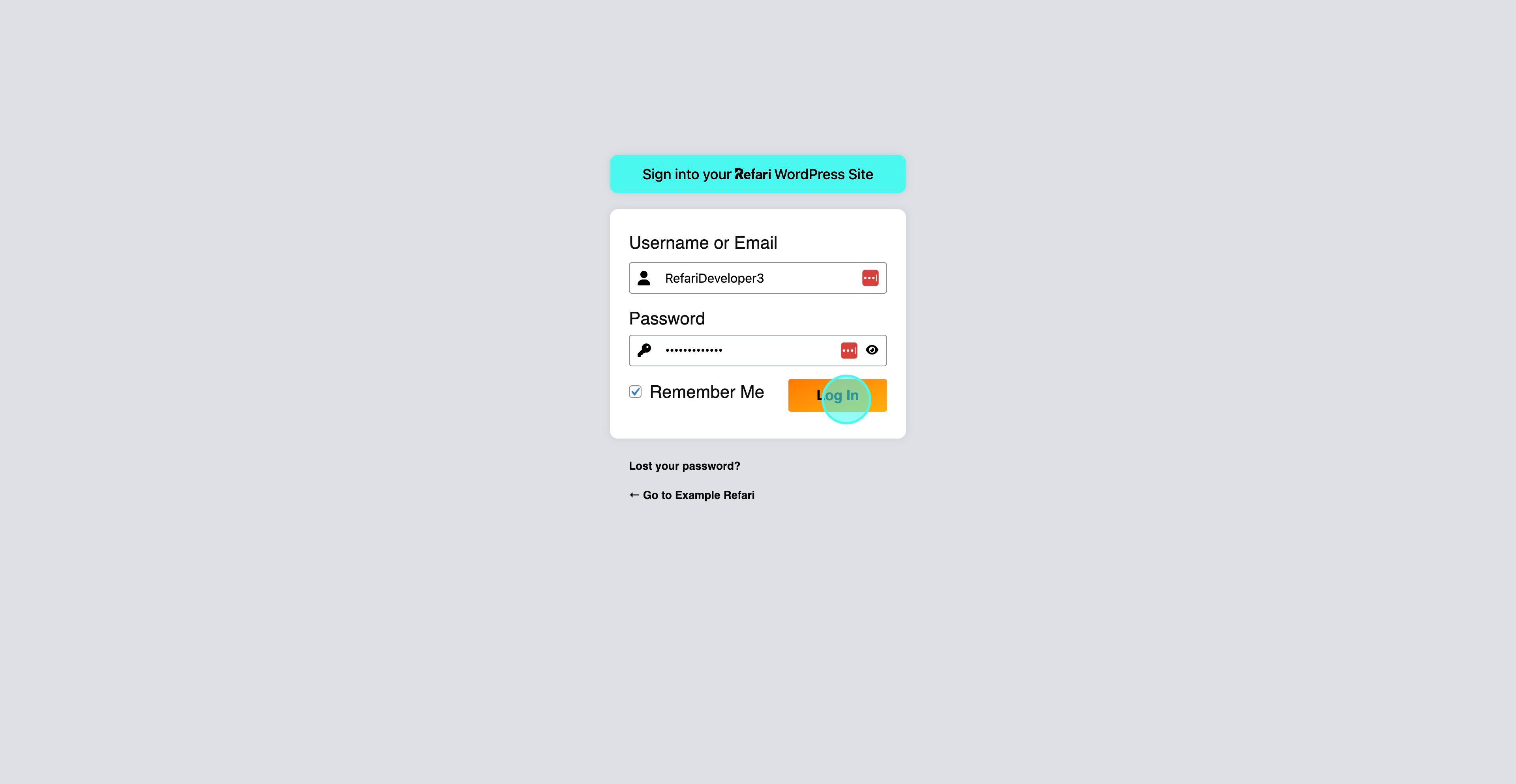
Step 1: Log in to your WordPress dashboard
Begin by logging in to your WordPress dashboard. This is where you manage your site content and settings, including custom scripts added through Elementor.
Step 2: Open Elementor's Custom Code feature
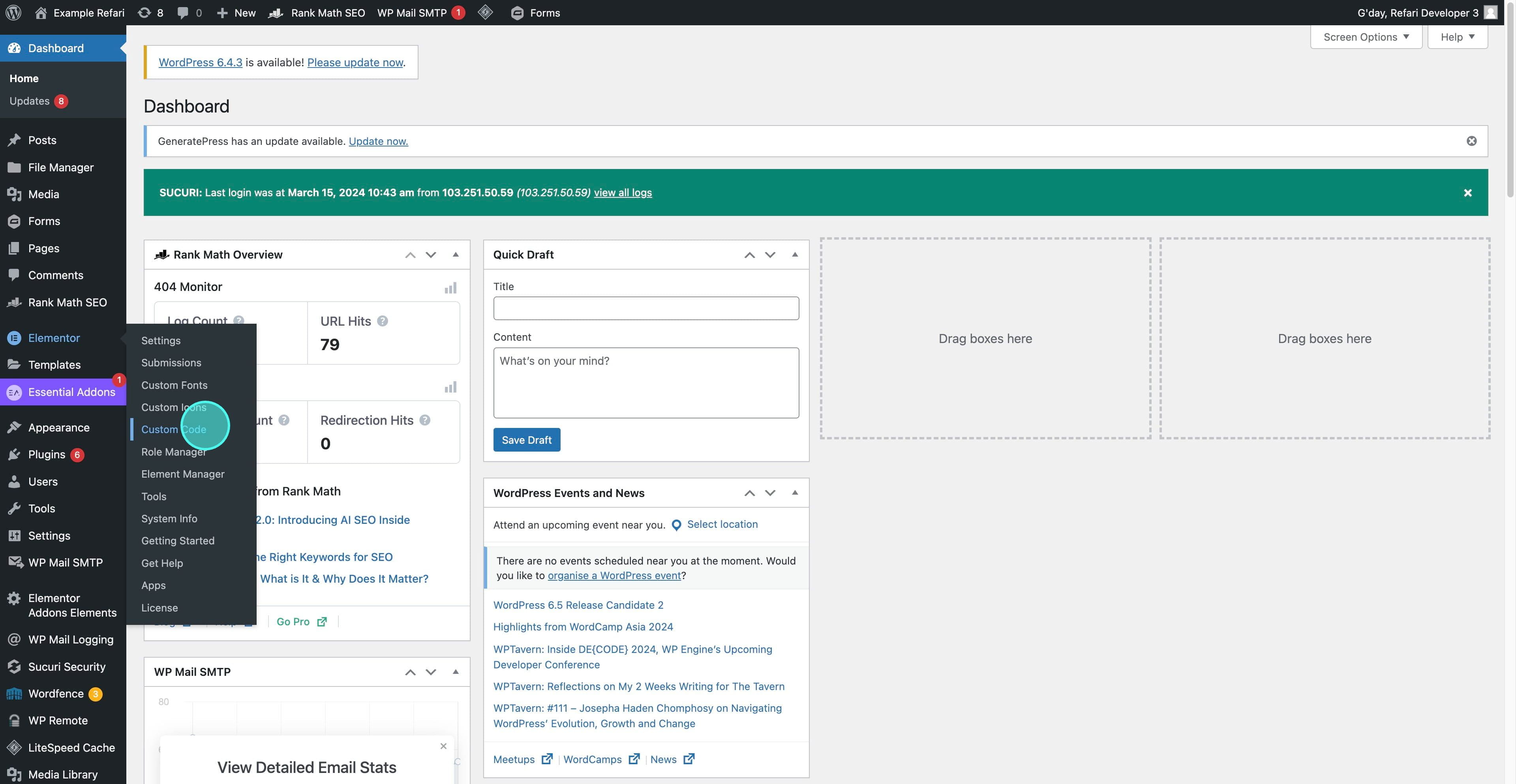
Go to Elementor > Custom Code on your dashboard. This feature lets you add site wide code without modifying any theme files.
Step 3: Create and name your custom code
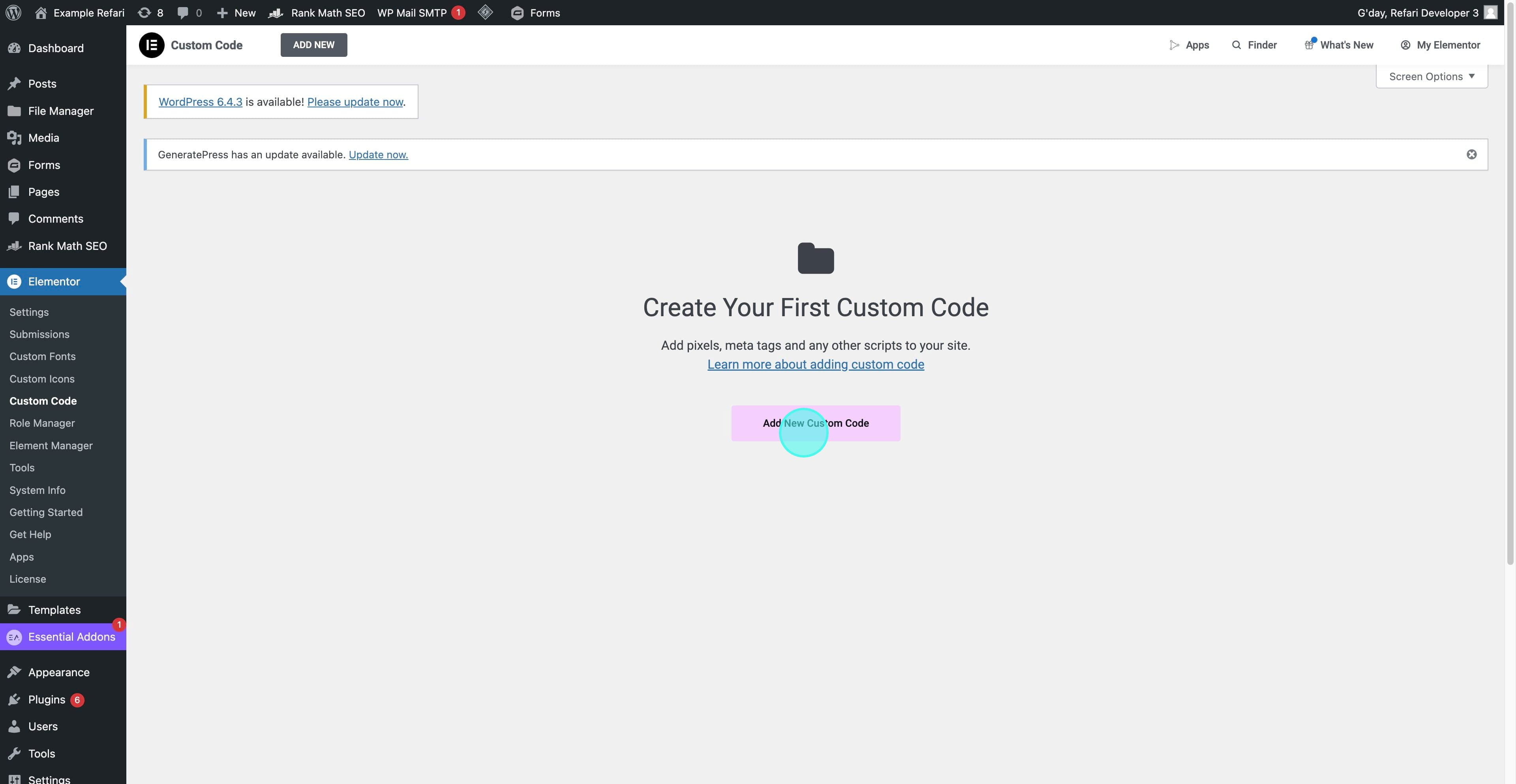
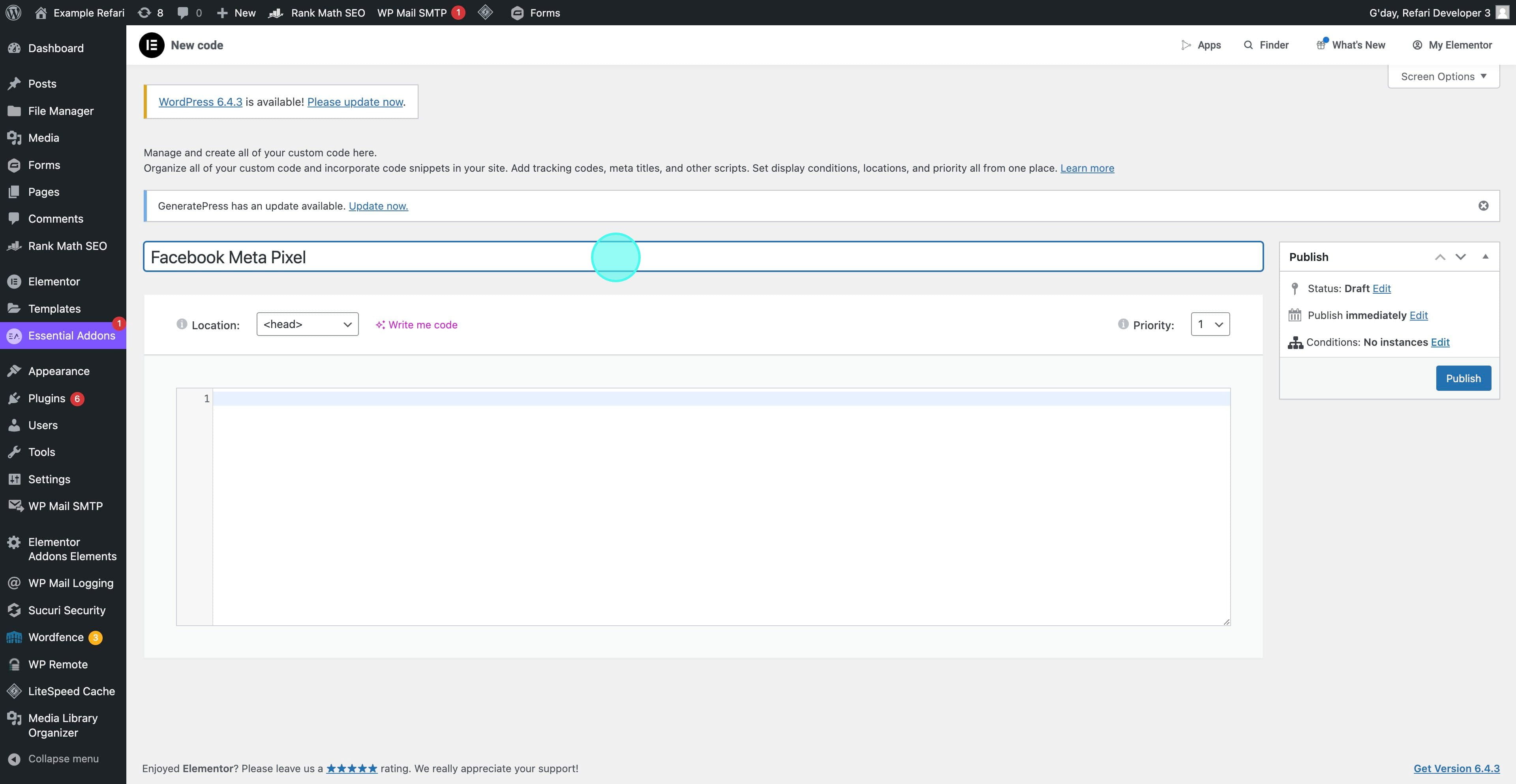
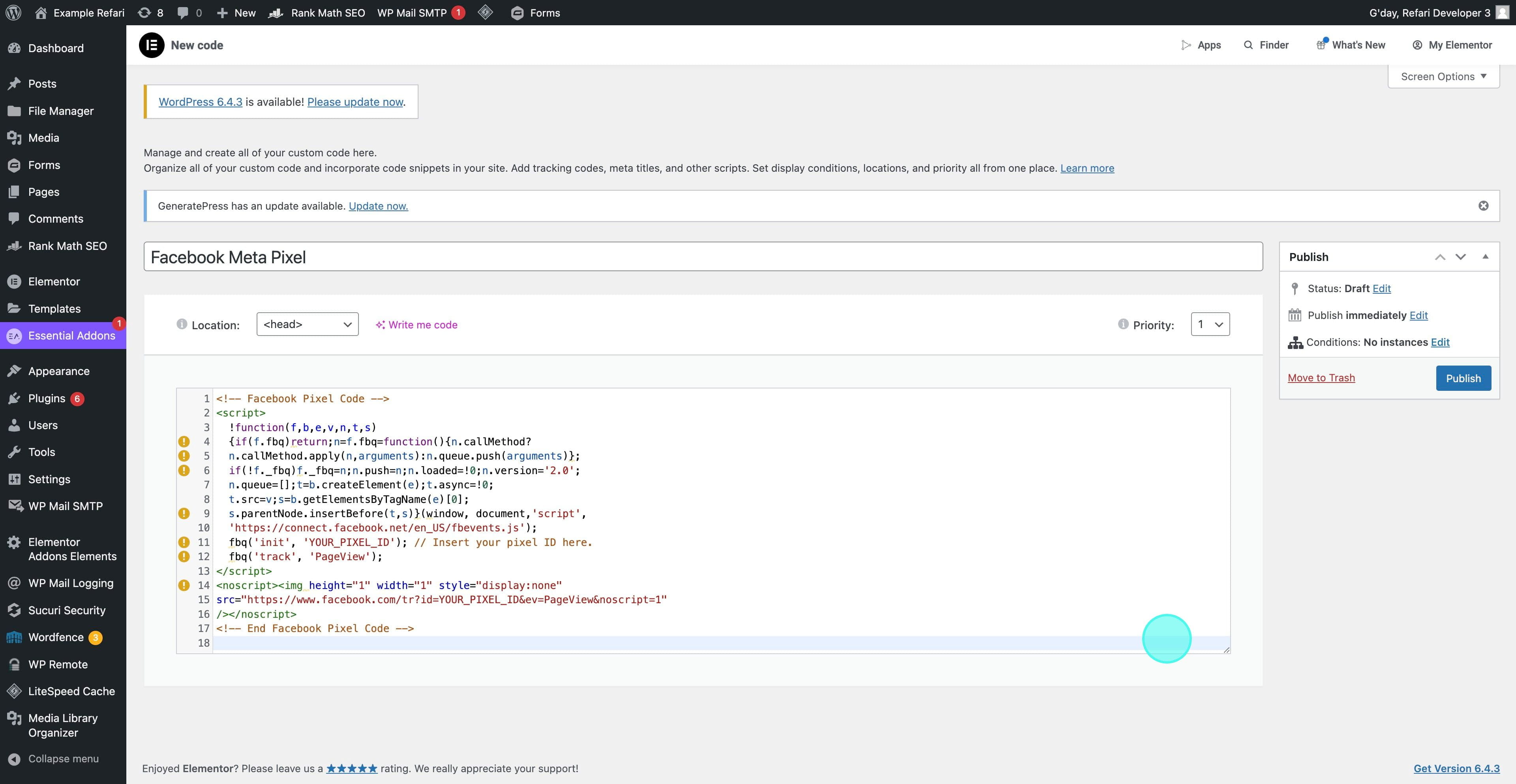
Select Add New Custom Code. Give the entry a name you will recognise later, such as "Facebook Meta Pixel", so it is easy to identify in future.
Step 4: Paste your Meta Pixel code
Copy your Meta Pixel code in full from Facebook Ads Manager, then paste it into the code field. Copying the complete code is important for accurate tracking. Set the placement to the <head> location so the Pixel loads on every page.
Step 5: Publish and activate your Pixel
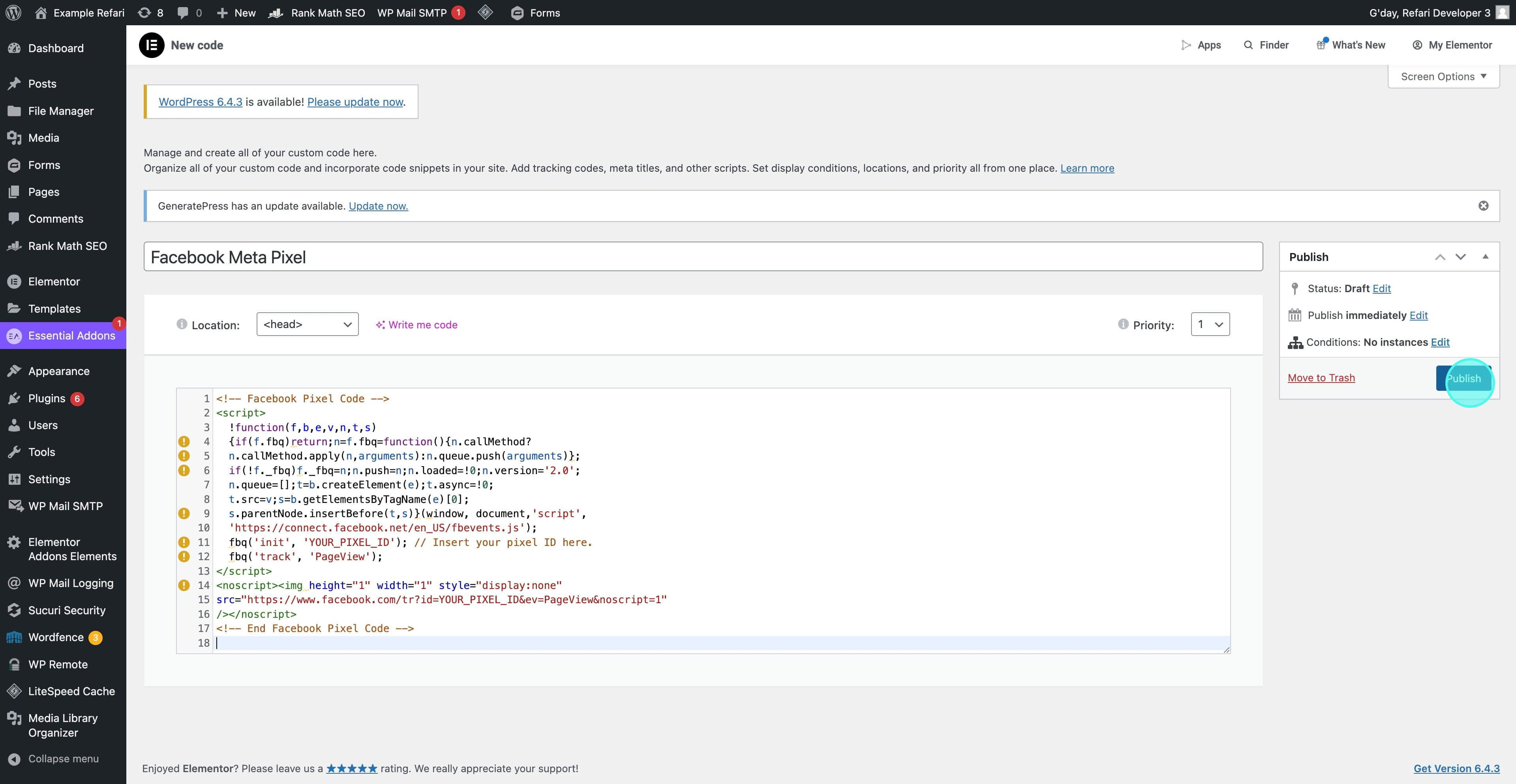
Select Publish to make the Pixel live across your site.
Optimising your integration
Clear your cache
After publishing, clear your site's cache so the Meta Pixel starts tracking straight away and reflects across all pages.
Verify Pixel activity
Use the Meta Pixel Helper, a free Chrome extension, to confirm your Pixel is firing correctly on your site.
Final Notes
Adding the Meta Pixel through Elementor keeps the setup simple and avoids editing any site code. Once it is verified and tracking, you can build audiences and measure conversions from your advertising. If you would like a hand, contact the Refari team.