
Refari
LinkedIn Integration v2 - Define Worktype & Seniority
https://help.refari.work/knowledge-base/article/linkedin-integration-v2-define-worktype-seniority
This article explains how to set the Work type and Seniority for the jobs you send to LinkedIn through Refari. By adding a couple of simple # tags to your job description, you can make sure LinkedIn displays this information correctly on your listing. This works for any job that flows to LinkedIn via the Refari feed, including jobs that Refari wraps into paid LinkedIn Job Slots.
How Work type and Seniority work
LinkedIn reads the Work type and Seniority of a job from special # tags placed at the bottom of the job description. When Refari sends your job to LinkedIn, it passes these tags through, and LinkedIn uses them to populate the matching fields on your listing. The short walkthrough below shows the feature in action.
Here is an example of how a job looks on LinkedIn once the Work type and Seniority have been set:

Adding the # tags to your job description
To set the Work type and Seniority, simply add the relevant # tag at the bottom of your job description. You can do this in either of two places:
- In your ATS or CRM, where you write the job description, or
- Directly in Refari, by editing the job description on the job itself.
The # tags you can use are shown below:
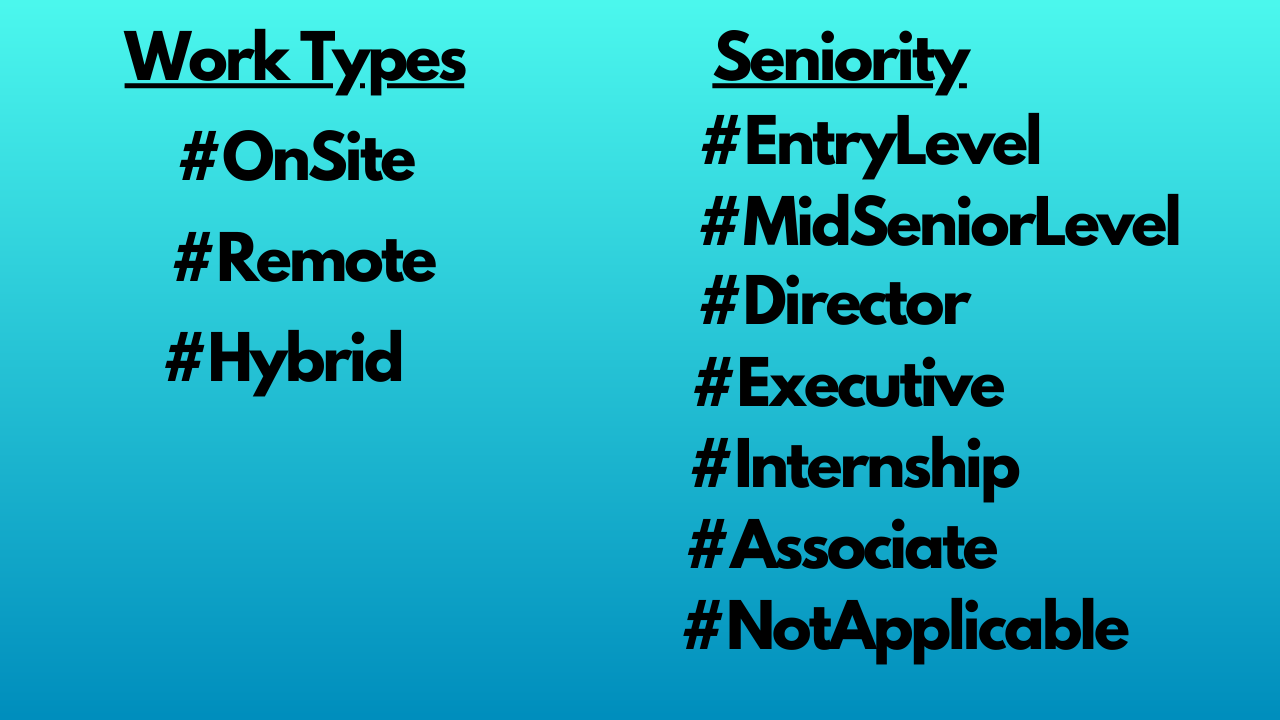
Once you add these tags to your job description (via your ATS or CRM, or via Refari), the matching Work type and Seniority will be populated on your LinkedIn listing.
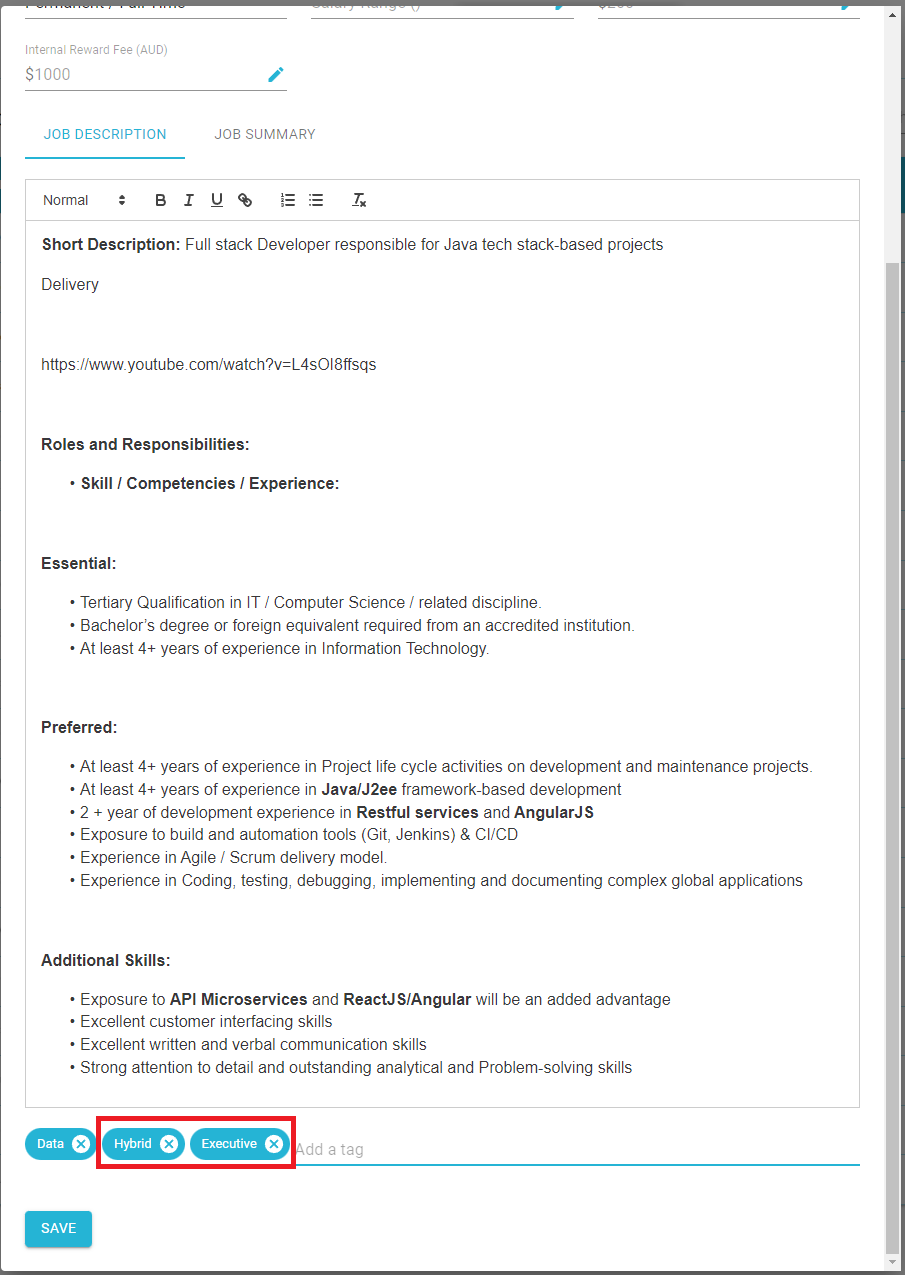
Final Notes
Setting the Work type and Seniority helps your jobs appear under the right filters on LinkedIn, so the right candidates can find them. The same # tags work for jobs that Refari wraps into paid LinkedIn Job Slots, so it is worth adding them to every role you send to LinkedIn. If a value does not appear as expected, double-check the spelling of the tag and that it sits at the bottom of the job description, then allow time for the next feed sync to run.