
TopRec
How to add your Google Review URL to your Refari account.
https://help.refari.work/knowledge-base/article/how-to-add-your-google-review-url-to-your-refari-account
NOTE: You must be using TopRec which is available as part of Refari. For more information on TopRec, please do get in contact with us!
Generating and adding a Google Review URL to your account is really quick and simple.
You will need a Google My Business account which is recommended for all businesses anyway.
Once set up, we can continue with adding a Google Review URL to your Refari account.
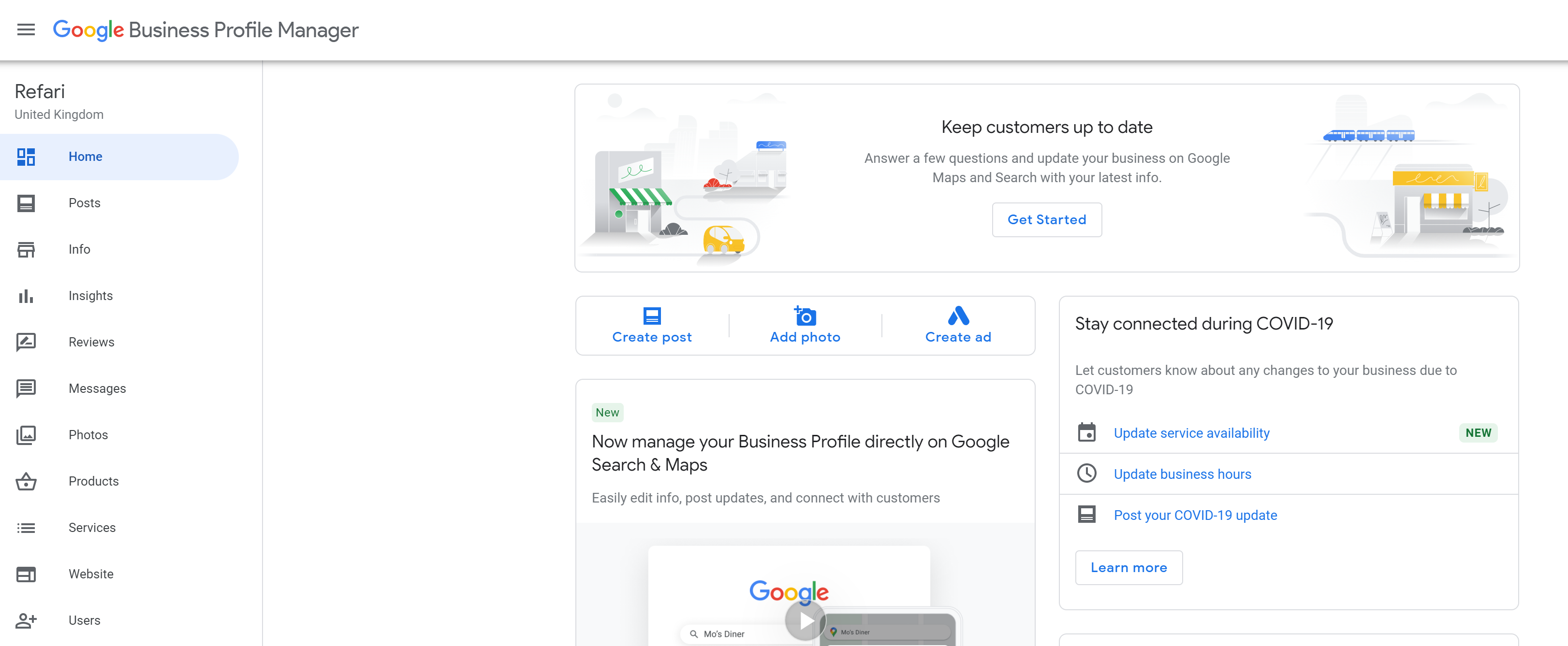
On the home page we need to find the 'Get More Reviews' section, which looks like this

Click on 'Share Review Form' and you will see your own Google Review link
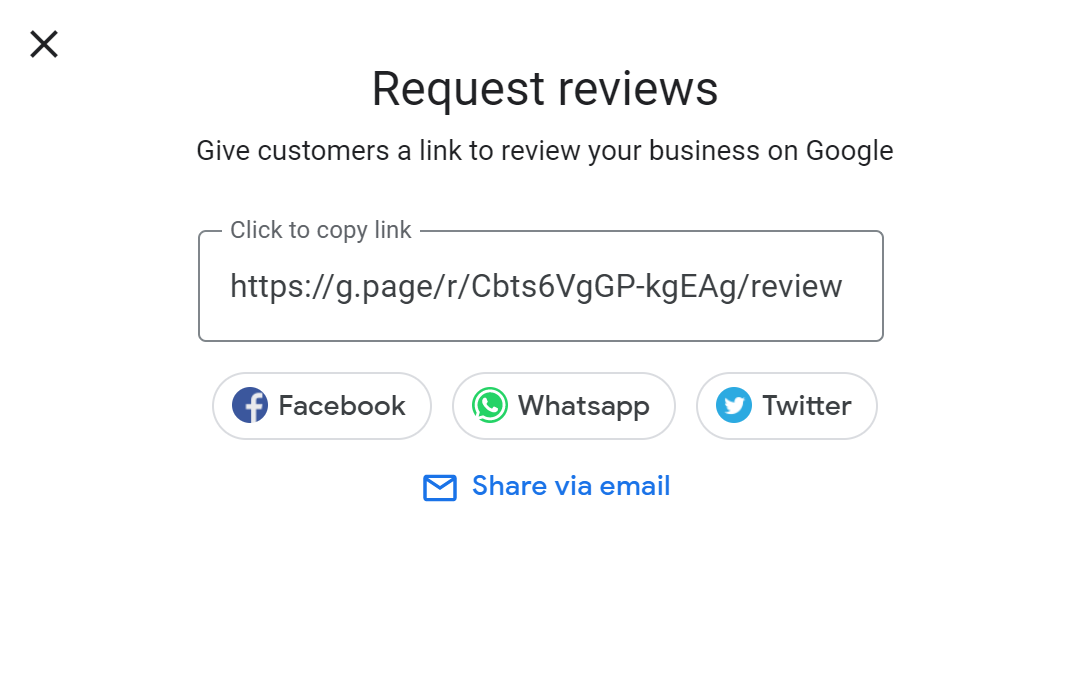
Copy the link simply by click on it. We then need to navigate to Refari and our TopRec Settings
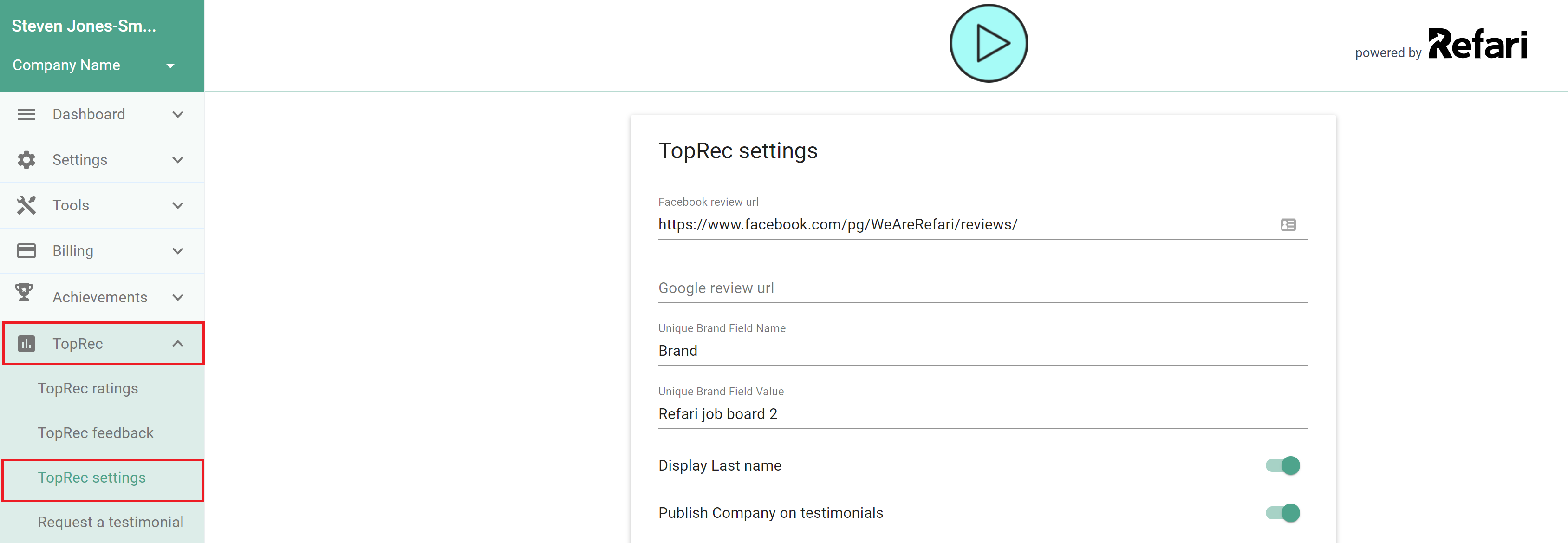
We can then paste the copied link into Google Review URL.
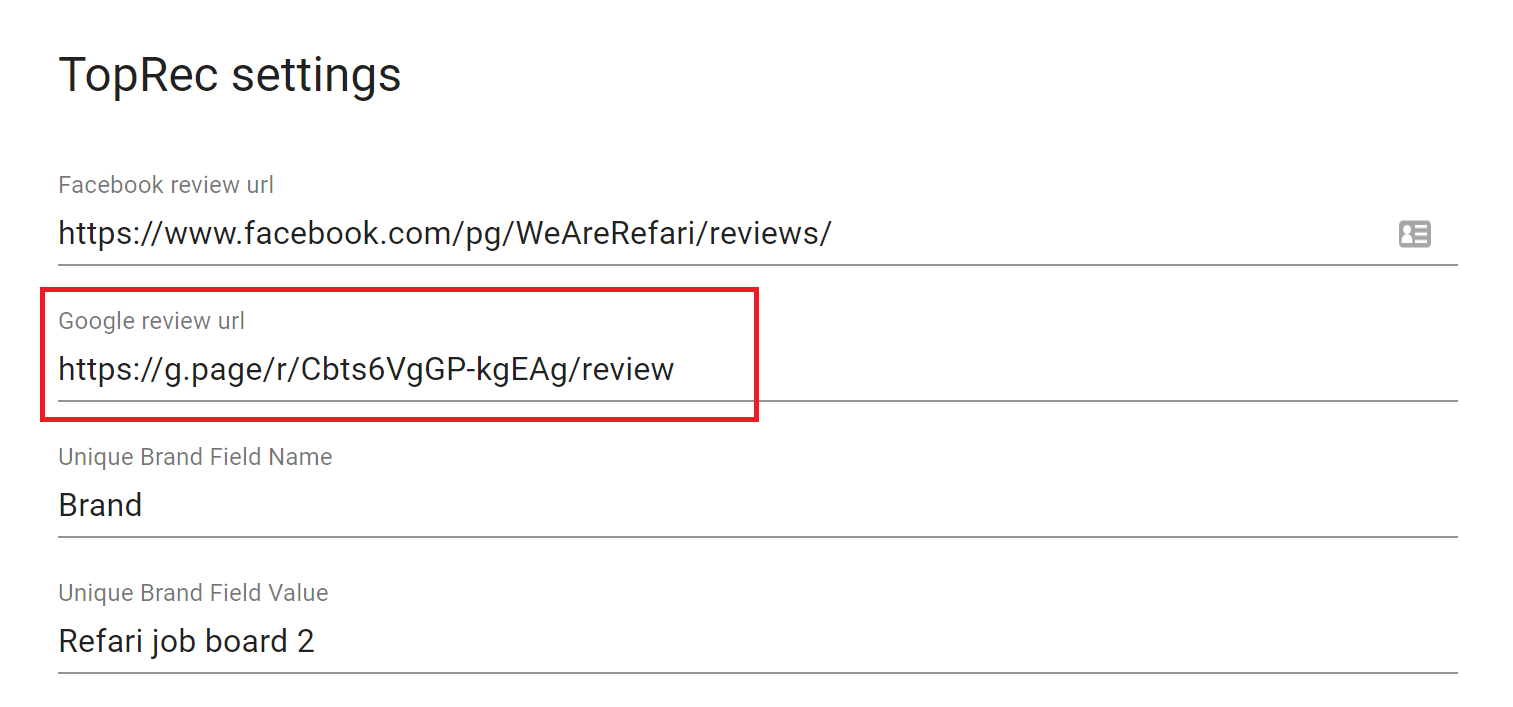
Clicking anywhere else on the page will then save the changes. When a client/candidate then leaves a 5* testimonial they will also be encouraged to share it as a google review as well!
Below is a video stepping you through the above as well.