
TopRec
How to set up Primary & Direct Drive TopRec Settings
https://help.refari.work/knowledge-base/article/how-to-set-up-primary-direct-drive-toprec-settings
1. Log in to your Refari Dashboard
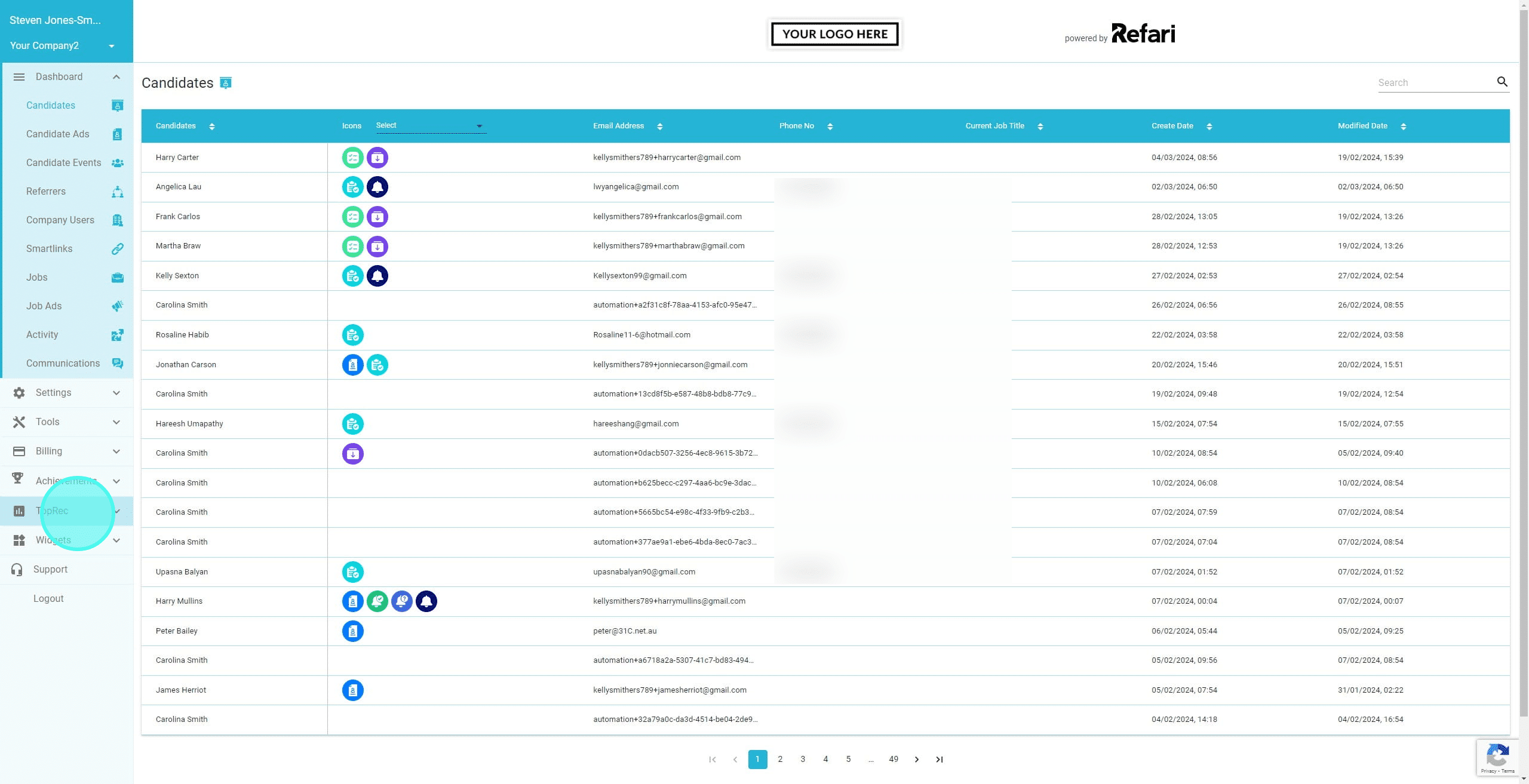
2. Click on "TopRec"
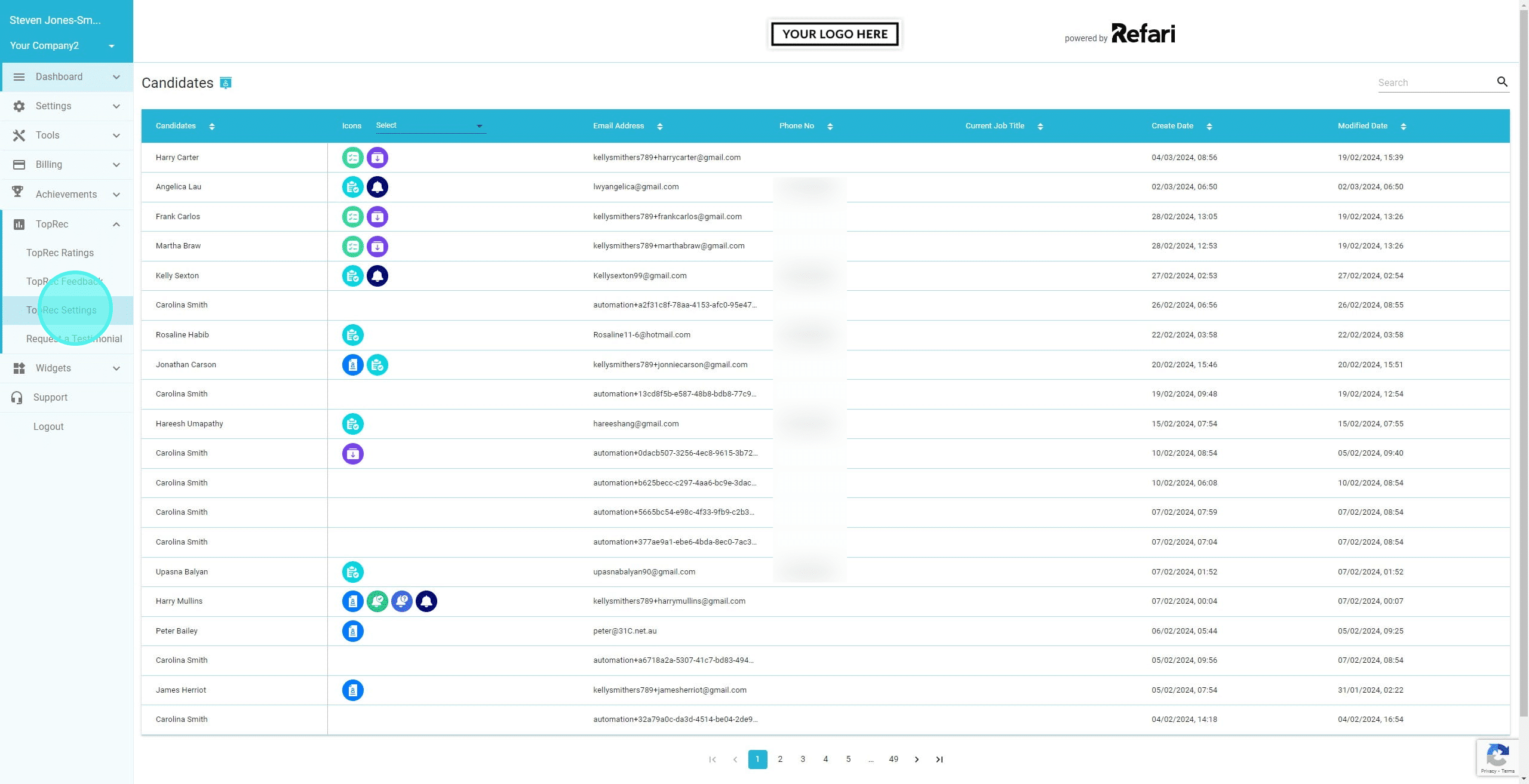
3. Click on "TopRec Settings"
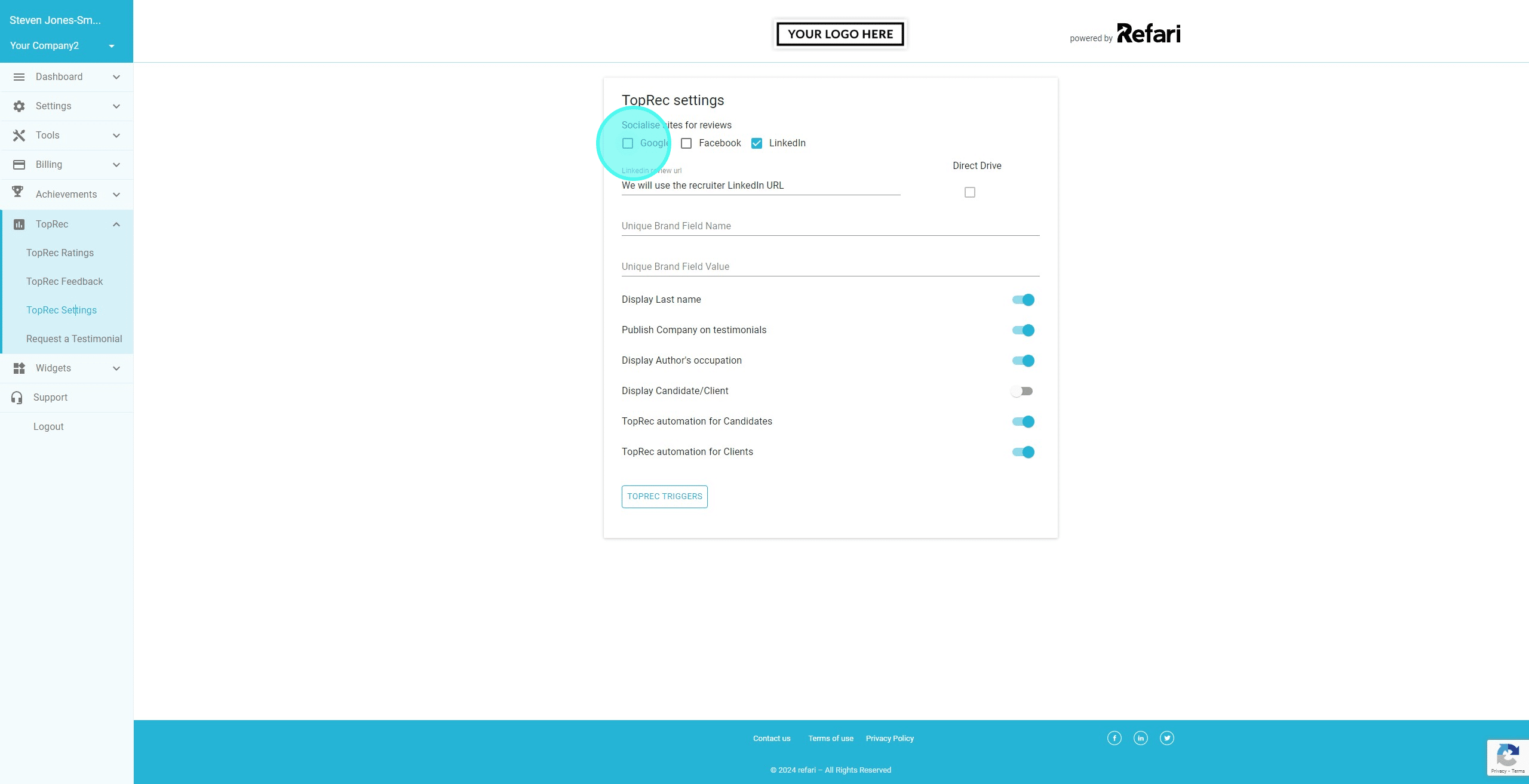
4. We are able to select which 3rd party review sites we want to set up. These are Google, Facebook & Linkedin.
5. We need to enter our Google Review URL and Facebook Review URL if you are wanting your candidates/clients to be able to post their reviews on your 3rd Party review sites.
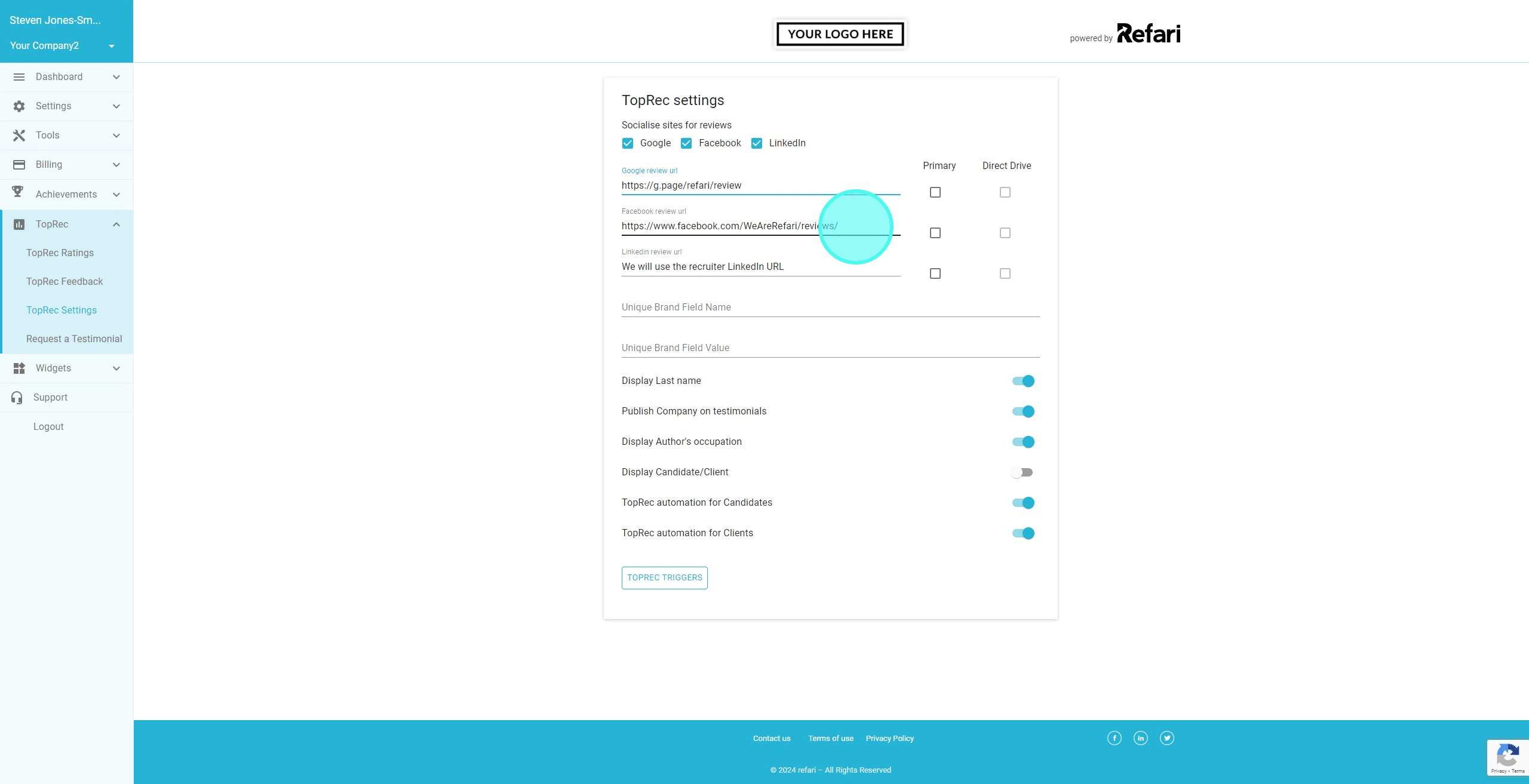
6. Clicking on Primary, means when a candidate leaves a Testimonial on TopRec, their review will automatically be copied to their clipboard and they will be taken directly to that 3rd Party Review site.
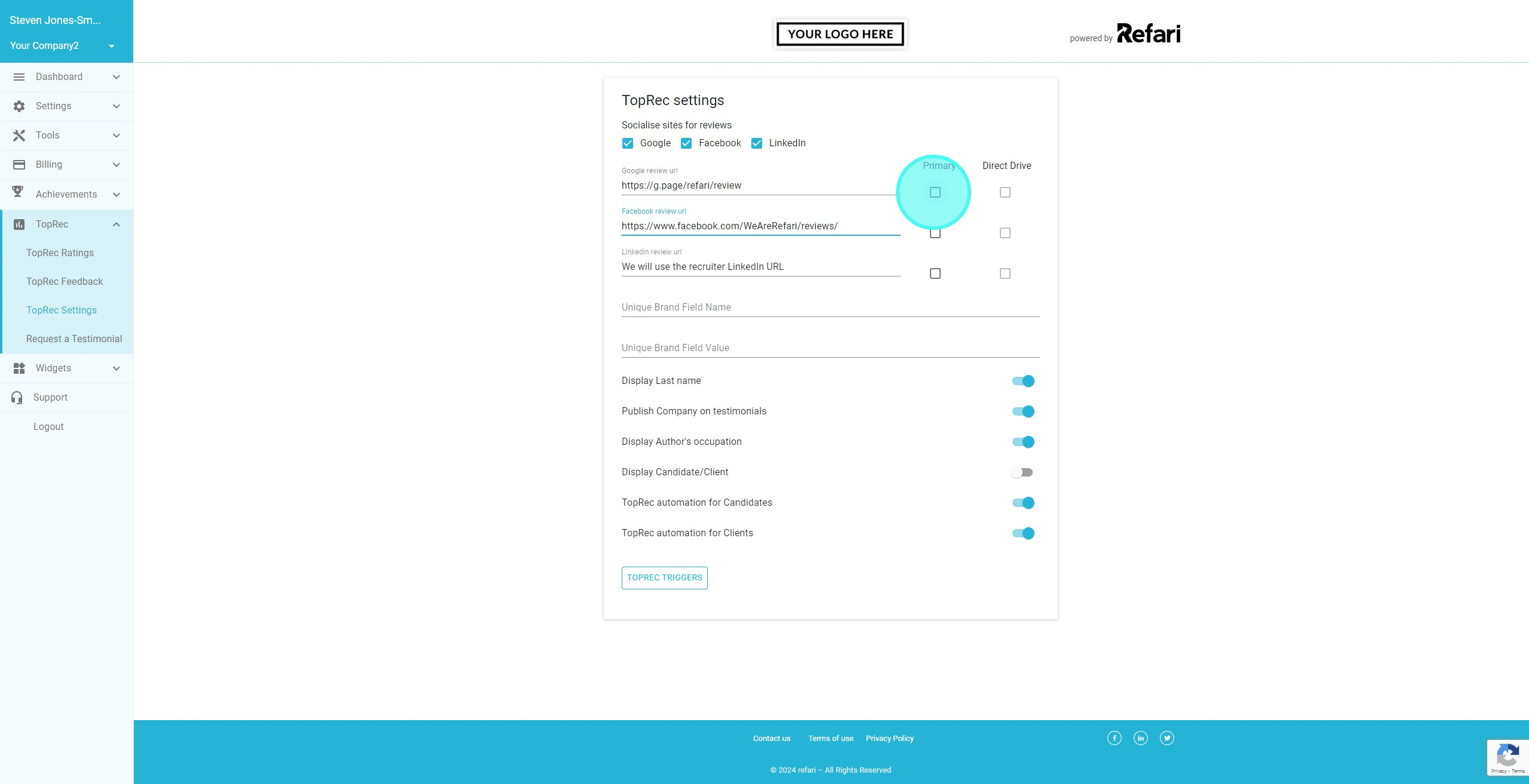
7. Clicking on Direct Drive means when a candidate is asked to leave a review/testimonial they are taken directly to that 3rd Party Review site and are NOT asked to leave a TopRec review.

To see how each of these affect your candidates/clients journey, check out this article: TopRec Primary & Direct Drive Settings - what do your candidates see?