Refari
How to set up your profile
https://help.refari.work/knowledge-base/article/how-to-set-up-your-profile
This guide walks you through setting up your profile on the Refari platform, so that you appear on your company's widgets such as Meet The Team and Testimonials. You will first receive an email with a sign-up link inviting you to access Refari. Once you have set a password, you can log in and set up your profile.
Setting up your profile
Step 1: Log in and open your dashboard
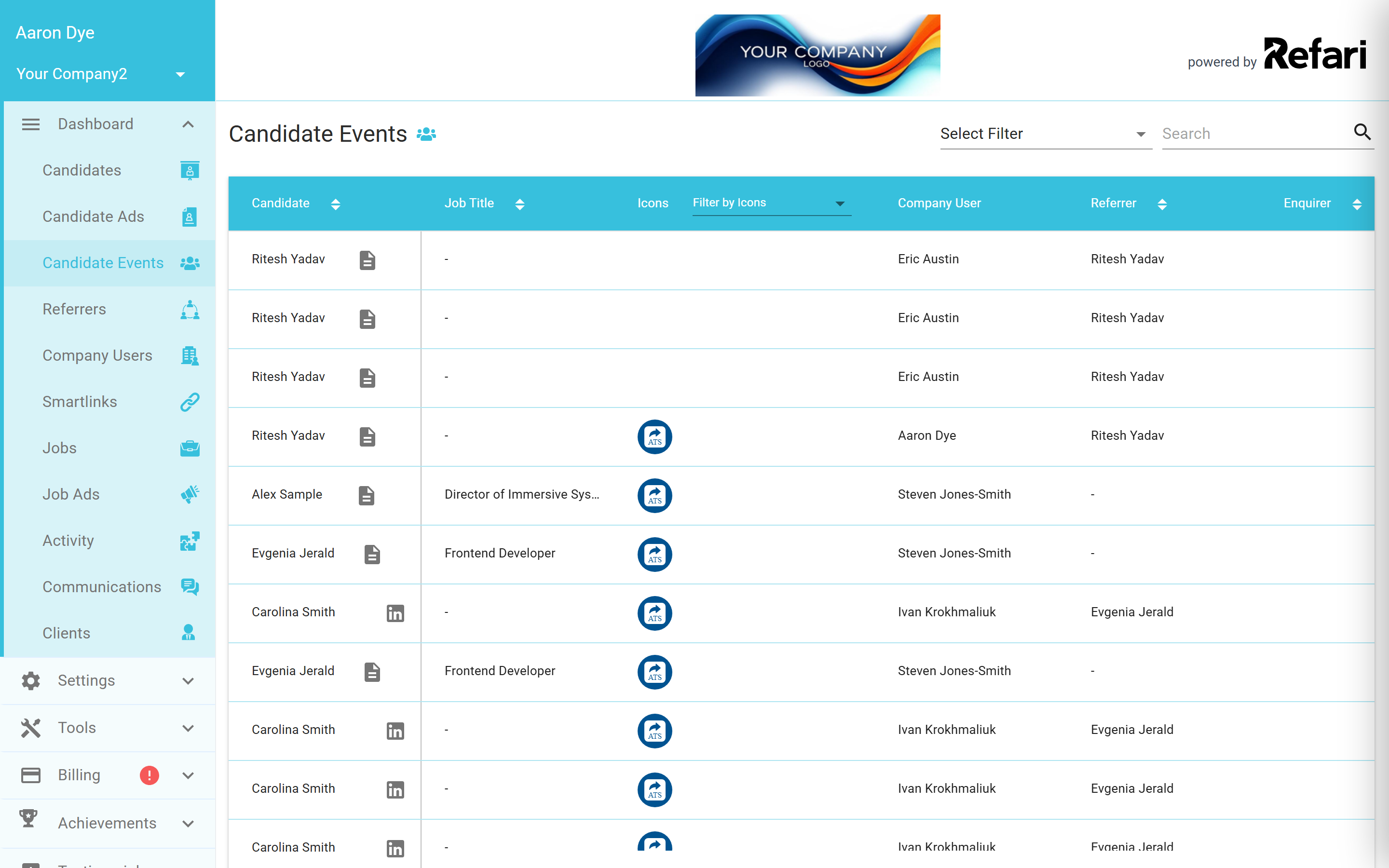
Log in to Refari at refari.co. You will arrive on your dashboard.
Step 2: Open your account profile
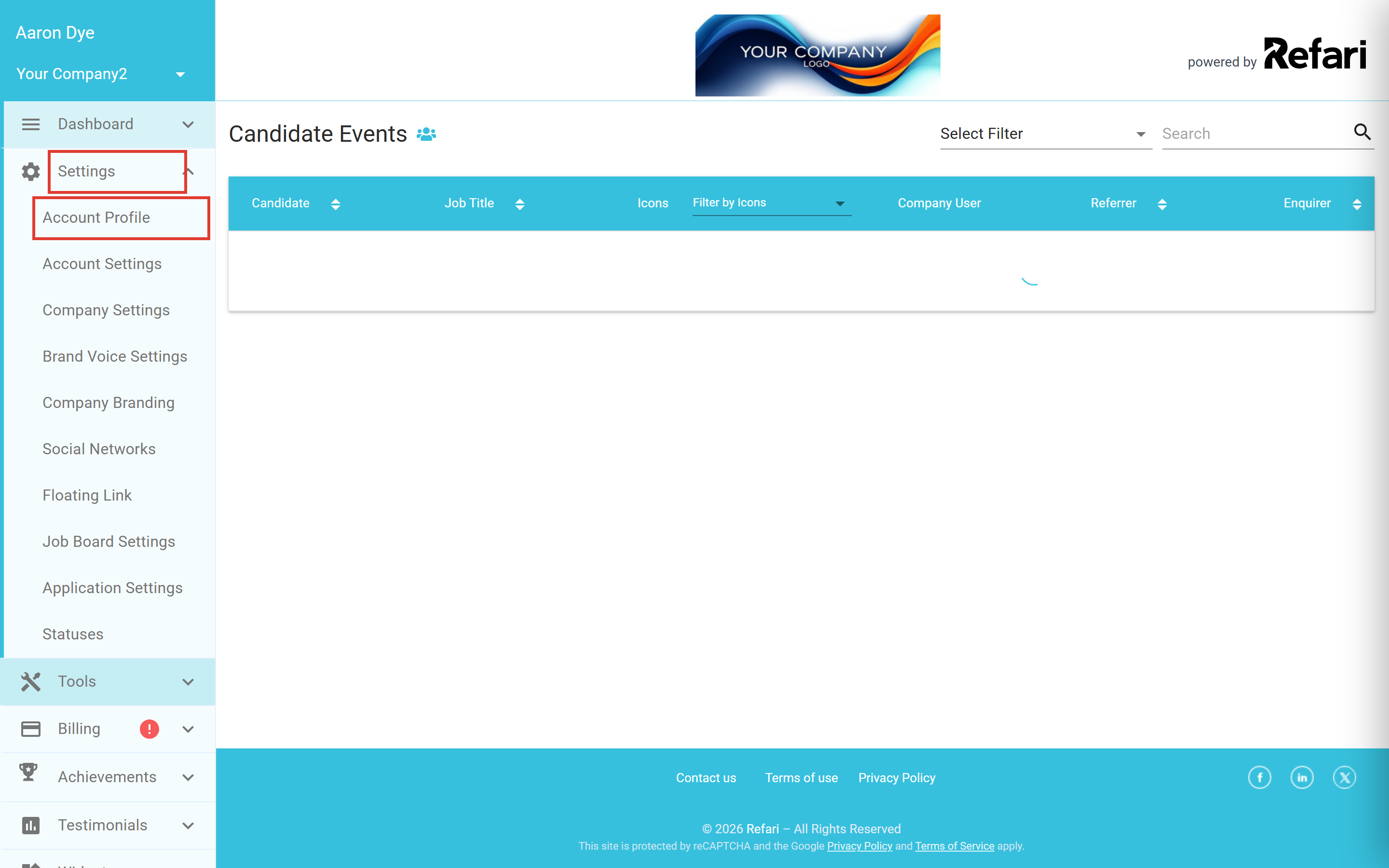
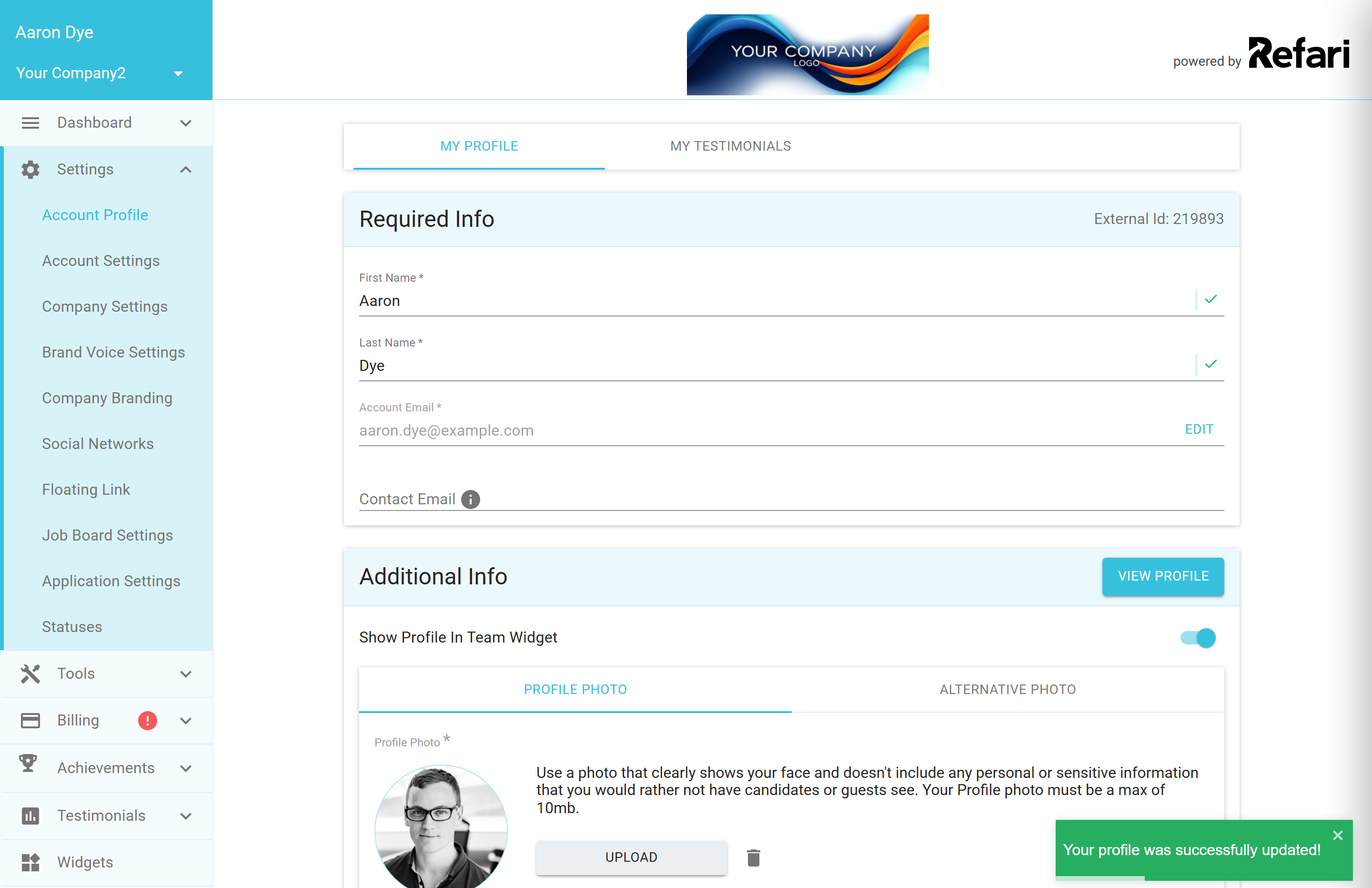
On the left, click Settings, then Account Profile.
Step 3: Check your name and email
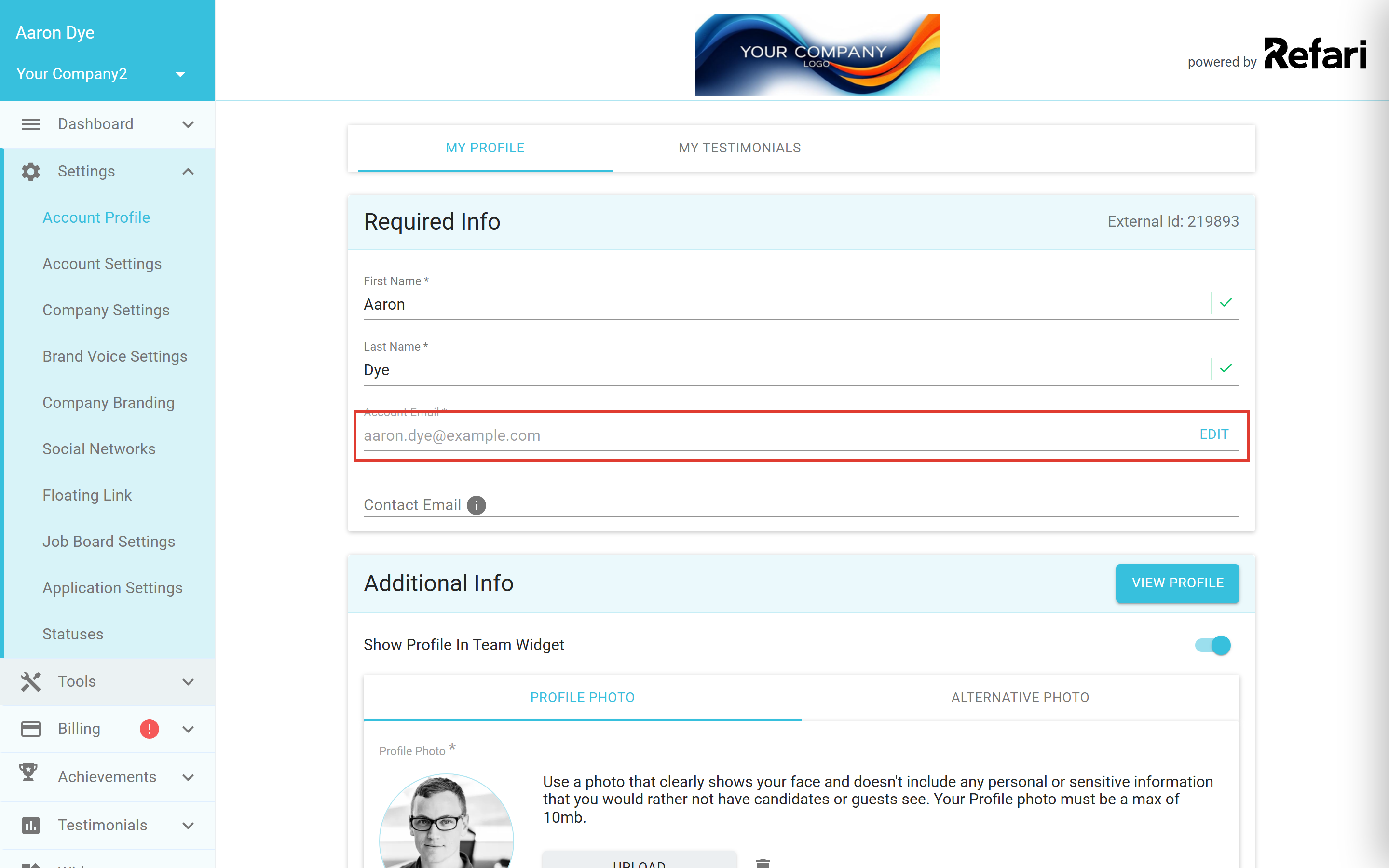
Your first and last name are already filled in under Required Info, and you can change them here if you need to. Your account email is shown too; if it ever needs updating, click EDIT beside it and confirm the new address. You can also add a separate Contact Email if you would like people to reach you on a different address.
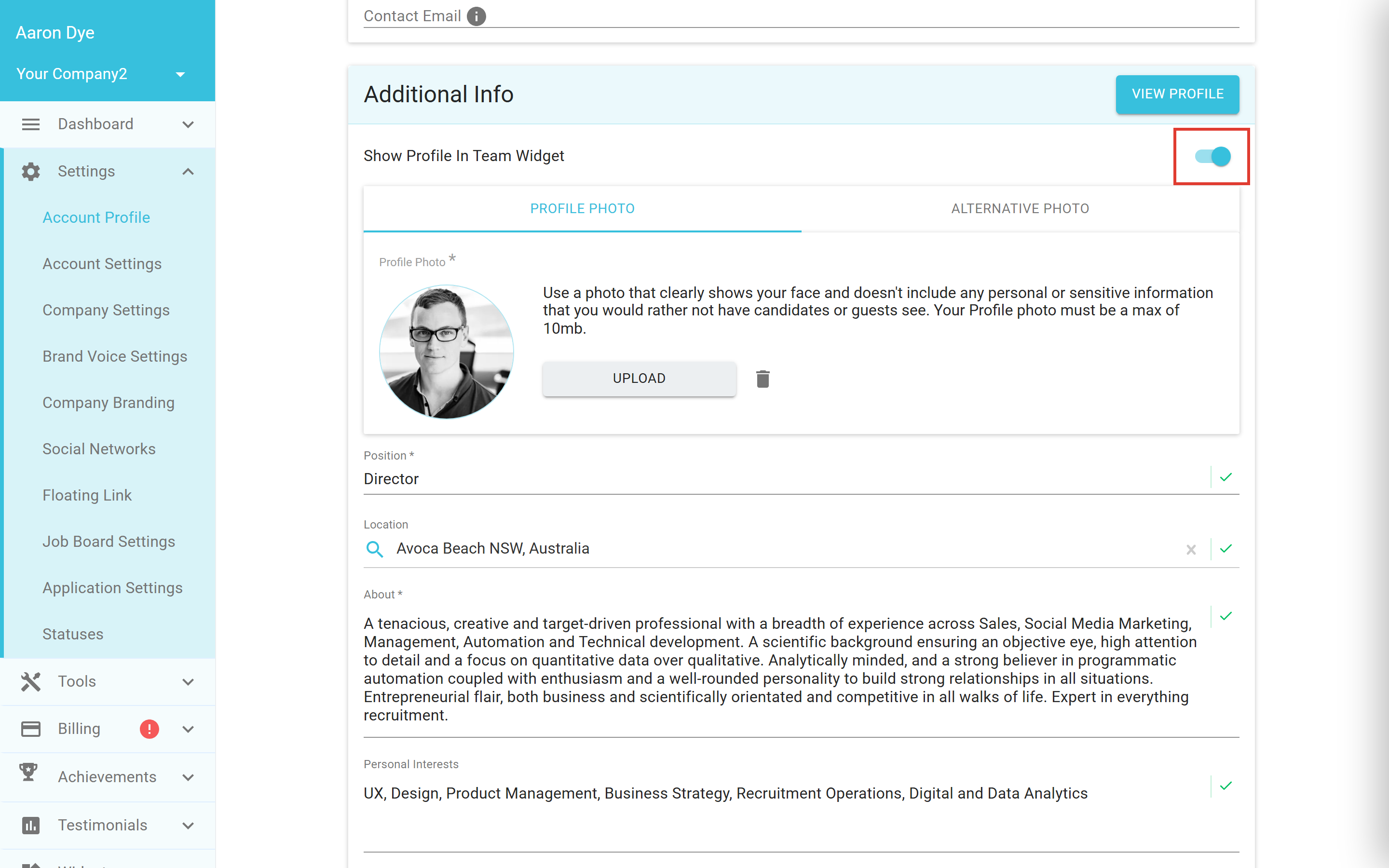
Step 4: Switch on "Show Profile In Team Widget"
At the top of the Additional Info section you will find the Show Profile In Team Widget toggle. This is the switch that puts your profile on your company's Meet The Team widget, so make sure it is switched on. When it is on, the toggle is coloured.
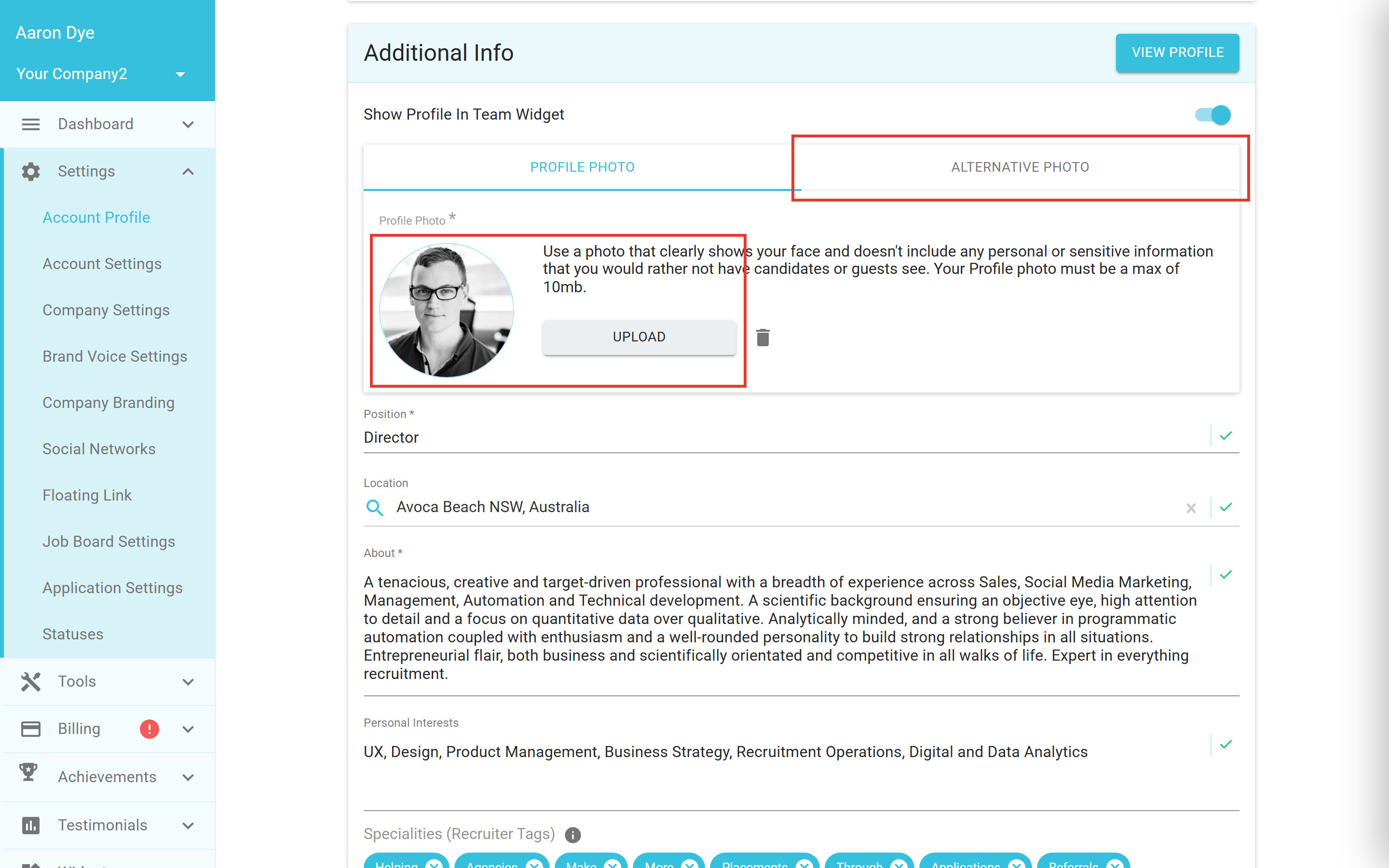
Step 5: Add your profile photo and details
Still in the Additional Info section, click UPLOAD to add your profile photo, choosing one that clearly shows your face, as it appears on your company's widgets. You can also add an alternative, more casual photo by switching to the Alternative Photo tab and uploading there. While you are here, fill in your other details too, such as your position, a short bio, your specialities and your location.
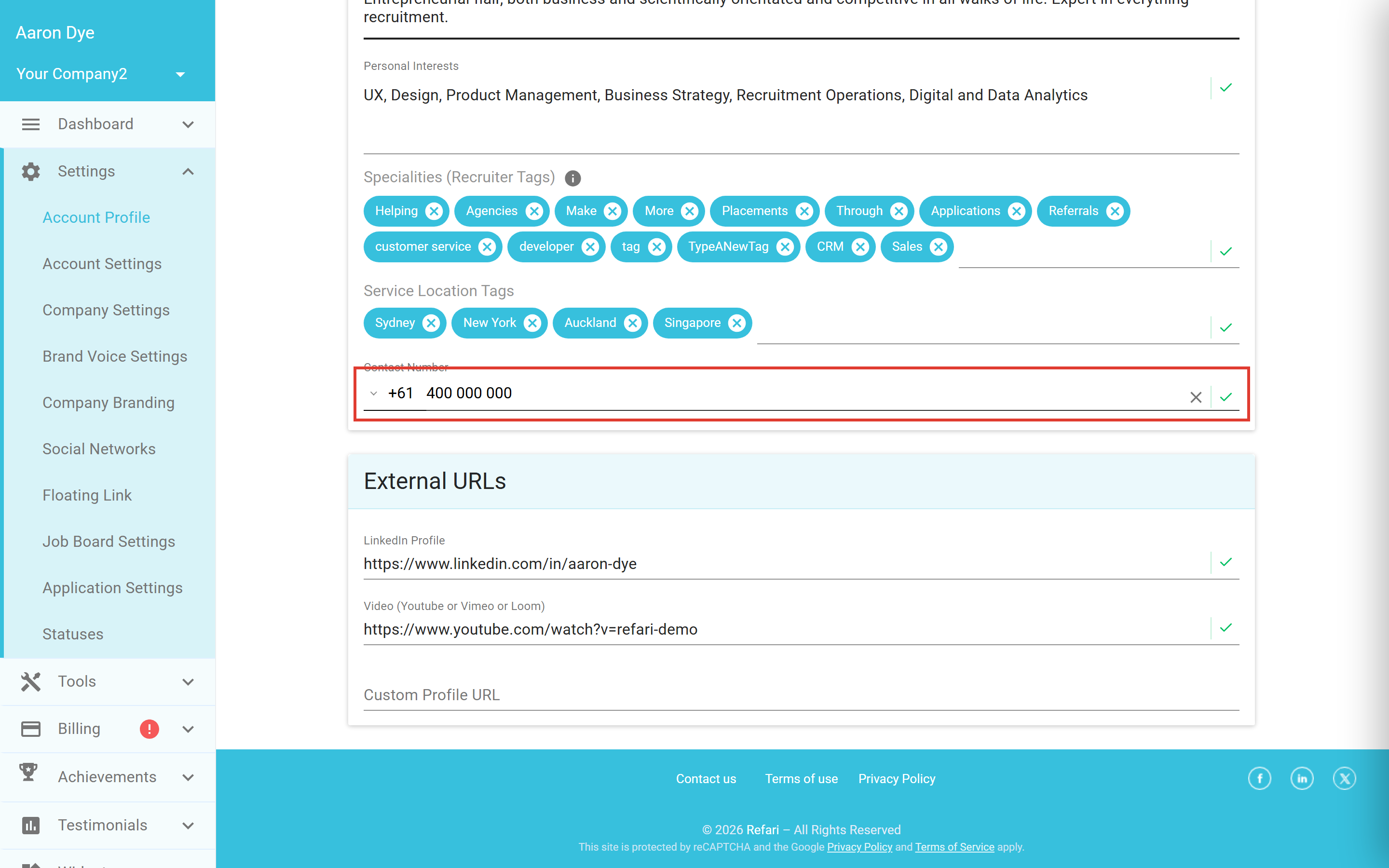
Step 6: Enter your contact number
Scroll down to the Contact Number field and enter your number, following the format shown.
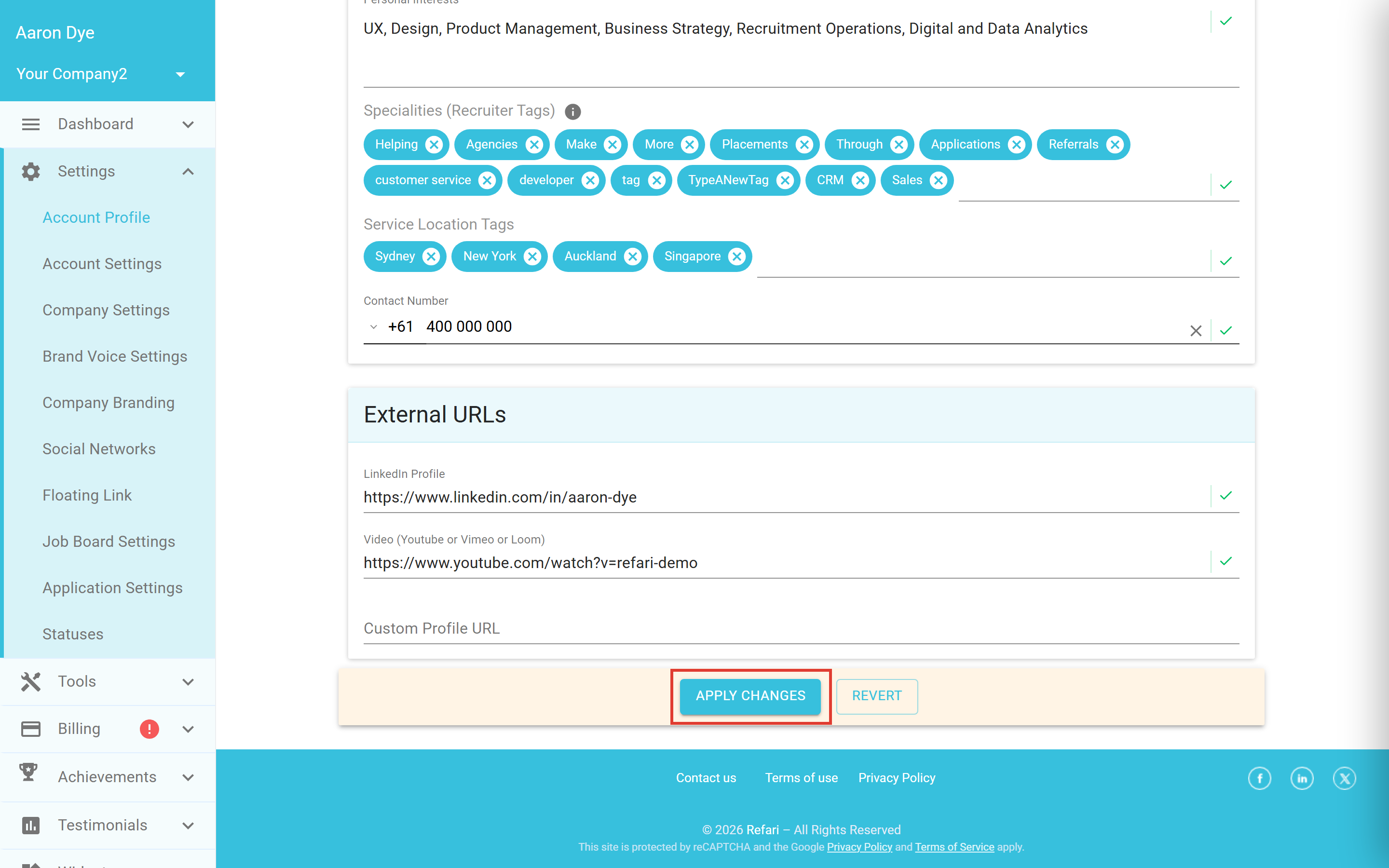
Step 7: Save your profile
As soon as you make a change, an Apply Changes bar appears at the bottom of the page. Once you have completed your details, click Apply Changes to save them. If you would rather discard your edits, click Revert.
A confirmation appears in the bottom-right corner to let you know your profile was updated successfully.
See your profile across the platform
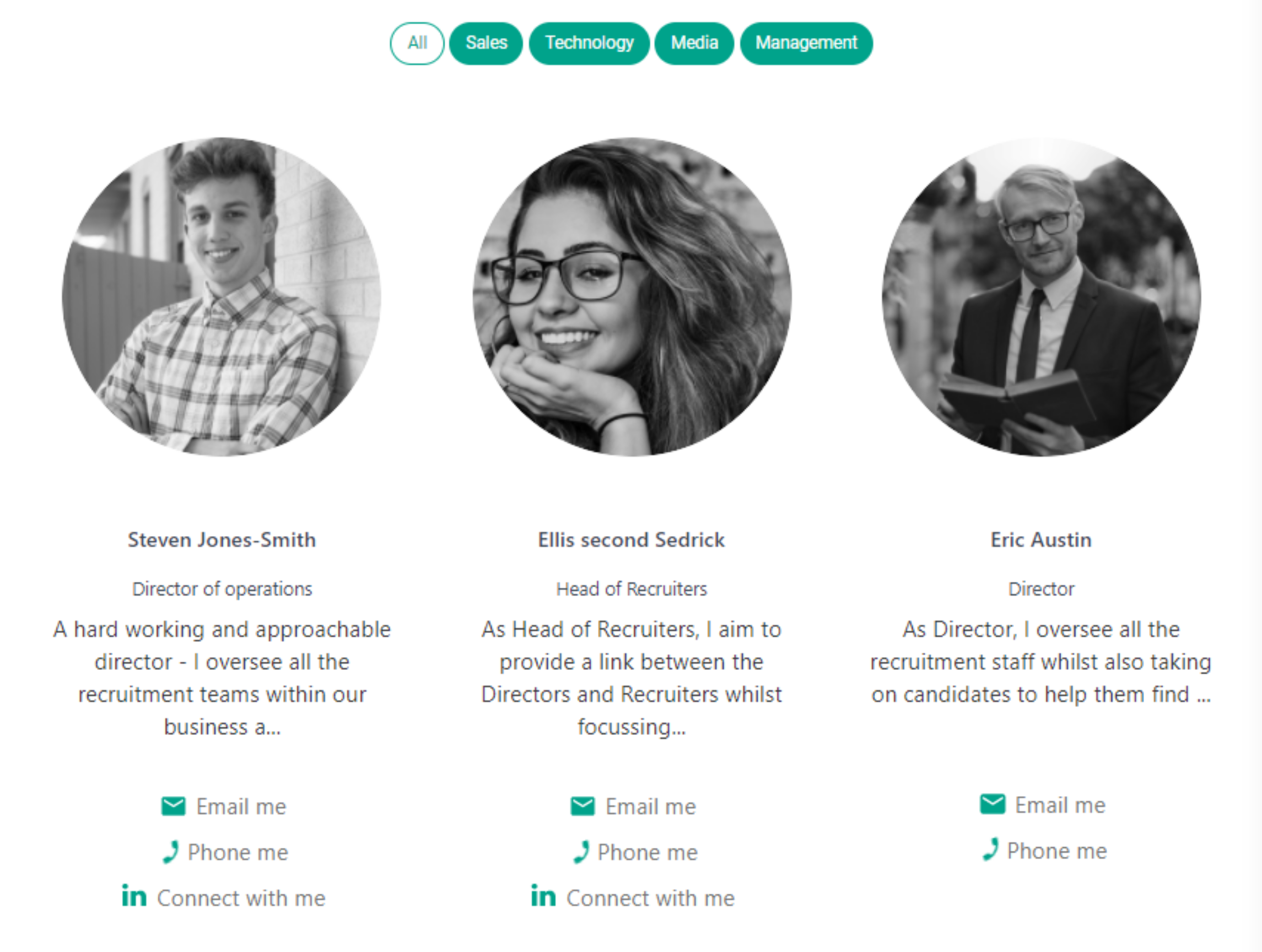
With all the required (*) fields completed and the Team Widget toggle switched on, your profile now appears across the platform. Here is an example of a Meet The Team widget showing the profiles.