
Refari
Why you keep getting logged out of your Refari job board
https://help.refari.work/knowledge-base/article/why-you-keep-getting-logged-out-of-your-refari-job-board
This article explains why the Refari widgets on your website (such as your job board) might stop recognising that you are signed in, so the signed-in features disappear and you seem to be logged out as you move between pages. In almost every case the cause is something in your web browser, and it is usually quick to fix yourself.
Which sign-in is this about?
The Refari widgets on your website (your job board, candidate spotlights and so on) recognise when you are signed in to the Refari platform (app.refari.co). When you are signed in, the widgets show you as signed in, usually at the top right of the widget, and unlock the extra options your team has access to, such as Socialise. This article is about those widgets losing track of your Refari platform sign-in, so you appear logged out and the signed-in options stop showing.
How to tell whether you are signed in
Look at the top right of your job board or widget. When you are signed in, you will see your name (and an account menu). When you are signed out, you will see a Sign in / Sign up link instead, and the signed-in options (such as Socialise) will not appear. If you keep flicking back to the Sign in / Sign up state as you move between pages, that is the problem this article fixes.

Why this happens
When you sign in to the Refari platform, your browser stores a small file called a cookie. That cookie is the signal the Refari widgets read to recognise you. Each time you open a new page, the widget looks for that cookie. If your browser is not keeping it or not sending it back, the widget no longer sees you as signed in, the signed-in options disappear, and you are effectively logged out as you move around.
Try the quick fixes first
Before changing any browser settings, these take only a few seconds and are worth a try:
- Fully close your browser (every window), open it again, then sign in and move between a couple of pages.
- Restart your computer, then sign in again.
A restart clears a temporary glitch in some cases. If you are still getting logged out afterwards, the cause is almost certainly your browser's cookies, and the steps below will fix it.
The main causes
This is almost always one of the following:
- A stale or out-of-date cookie left in your browser. This is the most common cause.
- Cookies are turned off or blocked in your browser settings.
- You have not accepted the cookie banner on the site, or you declined it.
- A browser extension (such as an ad blocker or privacy tool) is blocking the cookie.
Each one is covered below, with the fix. They are ordered from most to least common, so start at the top and work down.
1. Clear a stale cookie (the most common fix)
Over time the cookie that keeps you signed in can become out of date or corrupted. Your browser keeps sending the old one, the platform keeps rejecting it, and the widgets log you out. Clearing your saved cookies and cache forces your browser to start fresh, and this resolves the problem in most cases.
In Google Chrome
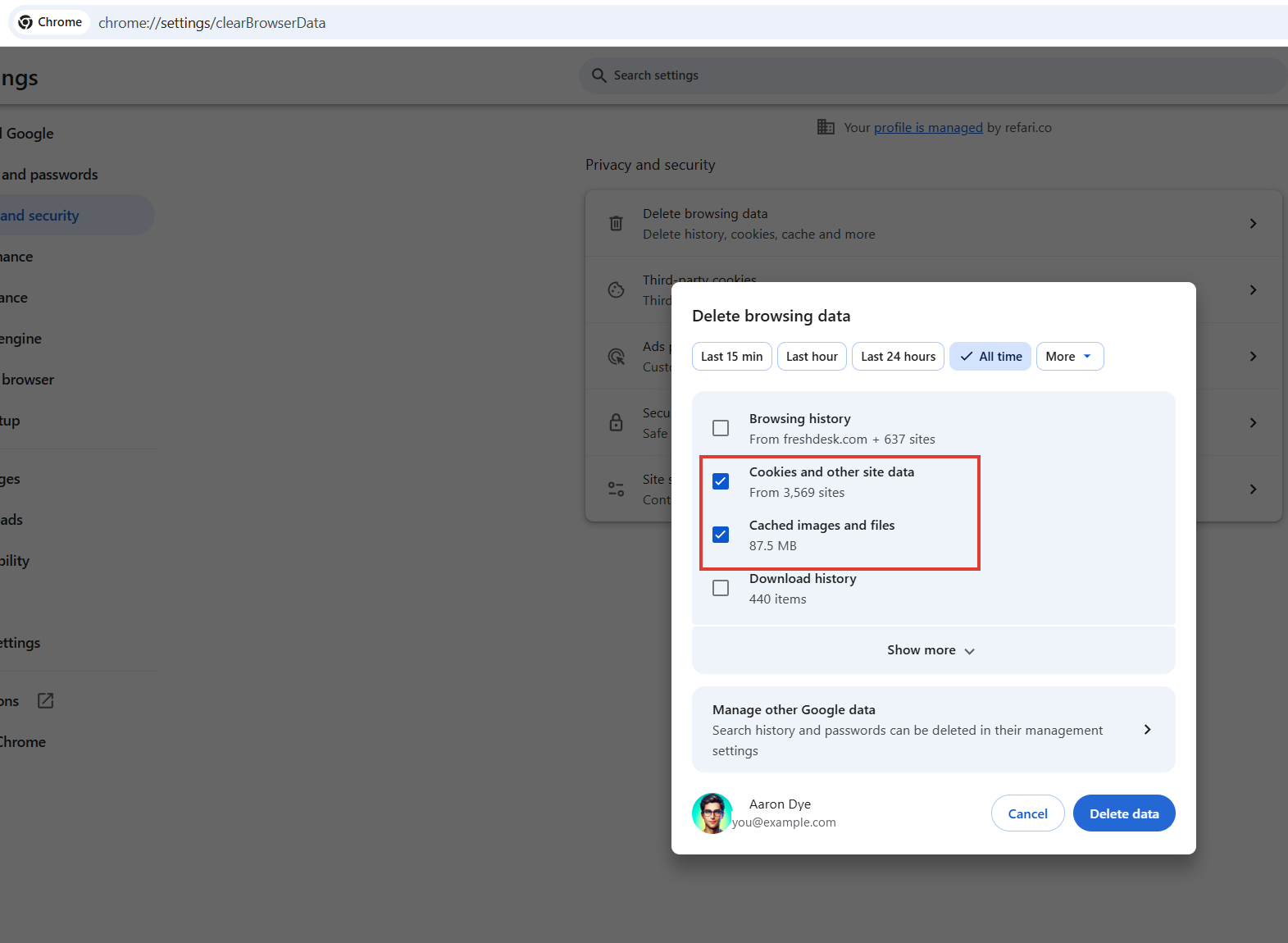
- Press Ctrl + Shift + Delete (on a Mac, Cmd + Shift + Delete). This opens the "Delete browsing data" window. You can also reach it from the three-dot menu in the top right, under "Delete browsing data" or "Clear browsing data".
- Set Time range to All time.
- Tick Cookies and other site data and Cached images and files.
- Click Delete data (older versions say "Clear data").
- Close the tab, open your website again, sign in to the Refari platform, then move between a couple of pages to check that it holds.
2. Make sure cookies are not blocked
If clearing cookies did not help, your browser may be blocking cookies, in particular third-party cookies. Your Refari sign-in is remembered by a cookie from refari.co, and on your own website that counts as a third-party cookie, so when third-party cookies are blocked you get signed out. You have two ways to fix this: allow cookies for Refari only (Option A, the most targeted), or allow third-party cookies for every site (Option B, the simplest).
Option A: Allow cookies for Refari only (recommended)
This leaves the rest of your browser settings exactly as they are and simply makes an exception for Refari. In Google Chrome:
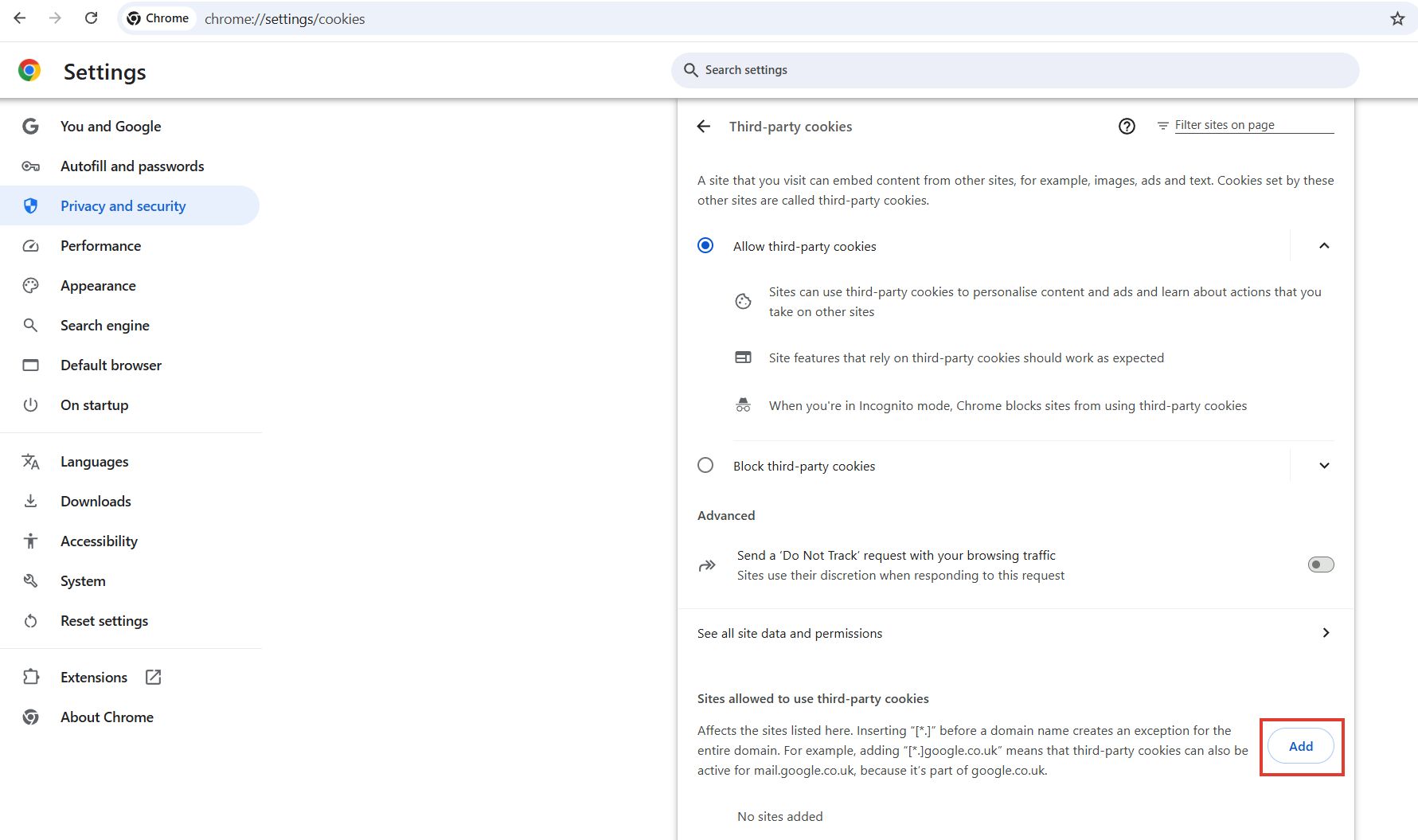
- In a new tab, type chrome://settings/cookies and press Enter. This opens the Third-party cookies page.
- Next to Sites allowed to use third-party cookies, click Add.
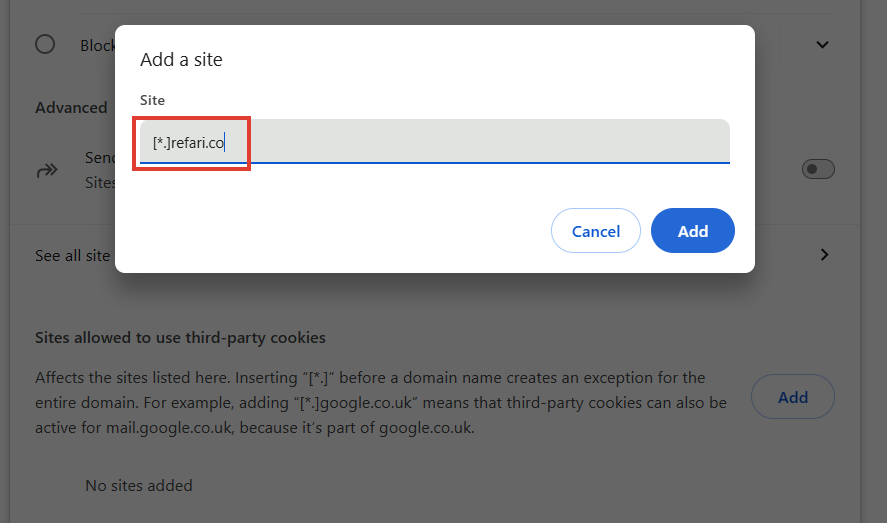
- Type [*.]refari.co and click Add. The [*.] covers all of refari.co, so the Refari widgets stay signed in, with no change for any other site. If you like, add your own website address as well.
- Reload your website and sign in again.
Option B: Allow third-party cookies (simplest)
- On the same Third-party cookies page, select Allow third-party cookies (some versions of Chrome call this "Allow all cookies").
- Reload your website and sign in again.
It is also worth checking the Sites not allowed to use third-party cookies list lower down the same page. If your website address or refari.co appears there, remove it.
3. Accept the cookie banner on the site
Many websites show a cookie or privacy banner the first time you visit. If you closed it without accepting, or chose to decline, the site may not be allowed to store the cookie that keeps you signed in.
- Reload the website.
- When the cookie banner appears, choose Accept or Accept all.
- If you do not see a banner, look for a small cookie or privacy icon (often in a bottom corner of the page), click it, and choose to accept.
- Sign in and check that the problem is gone.
4. Check for a browser extension that is blocking cookies
Ad blockers and privacy extensions can sometimes block the cookie that keeps you signed in. The quickest way to test this is an Incognito window, which turns your extensions off by default.
In Google Chrome
- Press Ctrl + Shift + N to open an Incognito window (or use the three-dot menu, then "New Incognito window").
- Go to your website, sign in, and move between pages.
- If it works in Incognito, an extension is the likely cause. Turn your extensions off one at a time in your normal window until you find the one responsible, or allow your Refari site in that extension's settings.
If it still doesn't work
If none of the above fixes it:
- Try a different browser, for example Microsoft Edge, which is already on most Windows computers. If it works in another browser, the issue is with your original browser's settings or extensions. If it happens in every browser, and on more than one device, get in touch with us.
- Email support@refari.co and let us know: which browser you are using, whether it also happens in a different browser, and (if you can) a screenshot of your cookie settings page from step 2. That helps us pinpoint it quickly.
Final Notes
Cookies are how nearly every website remembers that you are signed in, so allowing them for your Refari site is both safe and expected. If the widgets ever lose track of your sign-in again, clearing your cookies and cache (step 1) is almost always the quickest fix.