
Refari
How to edit your team members' profiles
https://help.refari.work/knowledge-base/article/how-to-edit-your-team-members-profiles
This guide walks you through how a Company Admin can edit another team member's profile by signing in as them, making the changes, then signing back out safely. The walkthrough below covers each step, with screenshots, and a short video at the top.
Step 1: Open your Company Users list
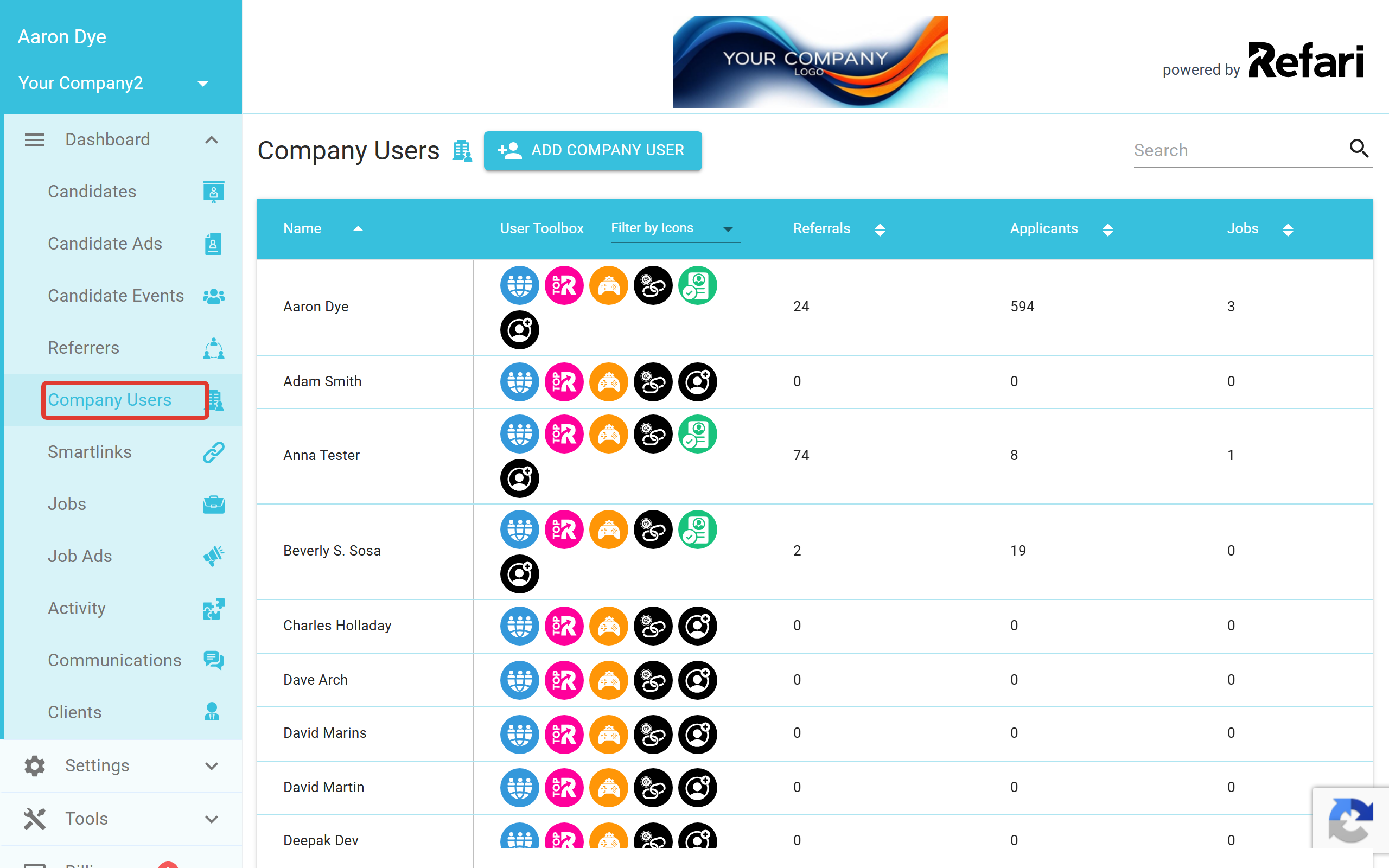
Sign in to your own account, go to your Dashboard, then open "Company Users". This lists everyone set up on your company account, along with their Status, which will read either "Registered" or "Invite sent".
Step 2: Open the team member's side panel
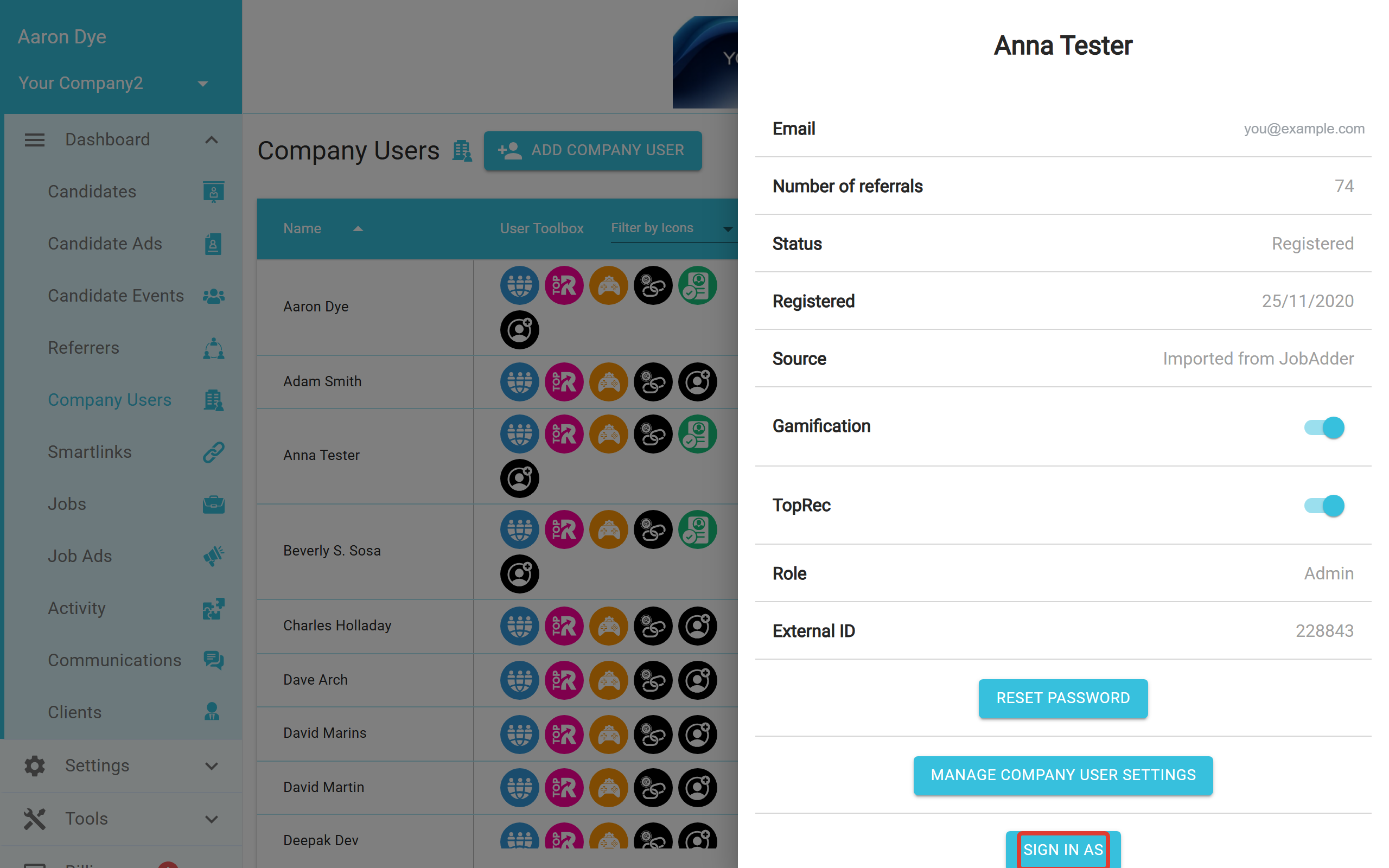
Click the row of the team member whose profile you want to edit. A panel will slide in from the right, showing their details. In the example below, we have selected "Anna Tester", whose Status is "Registered".
Step 3: Sign in as the team member
At the bottom of that panel, click "Sign In As". You will now be acting as that team member, and anything you change applies to their profile rather than your own.
Step 4: Edit their Account Profile
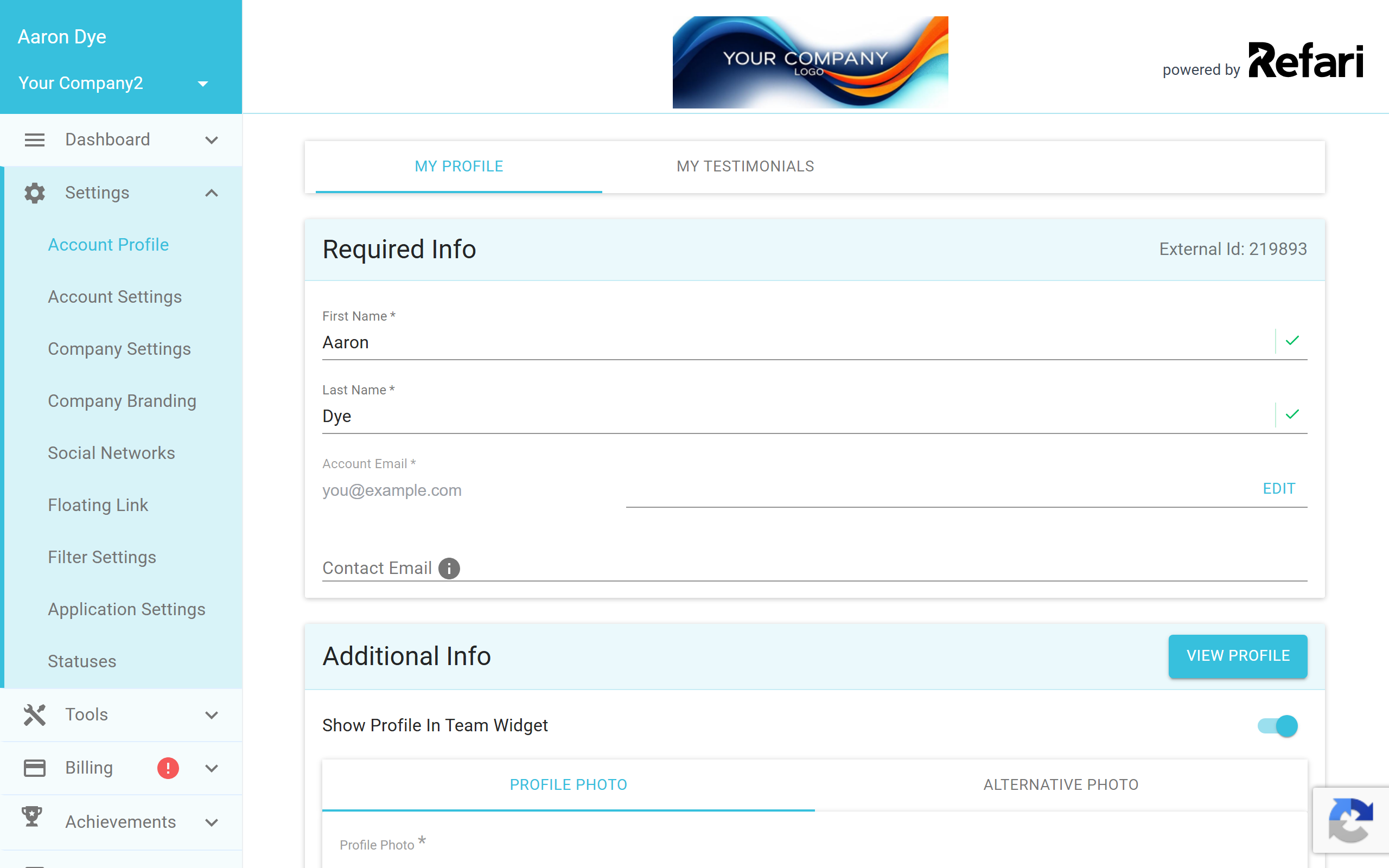
Go to "Settings" then "Account Profile" and edit their profile exactly as you would edit your own.
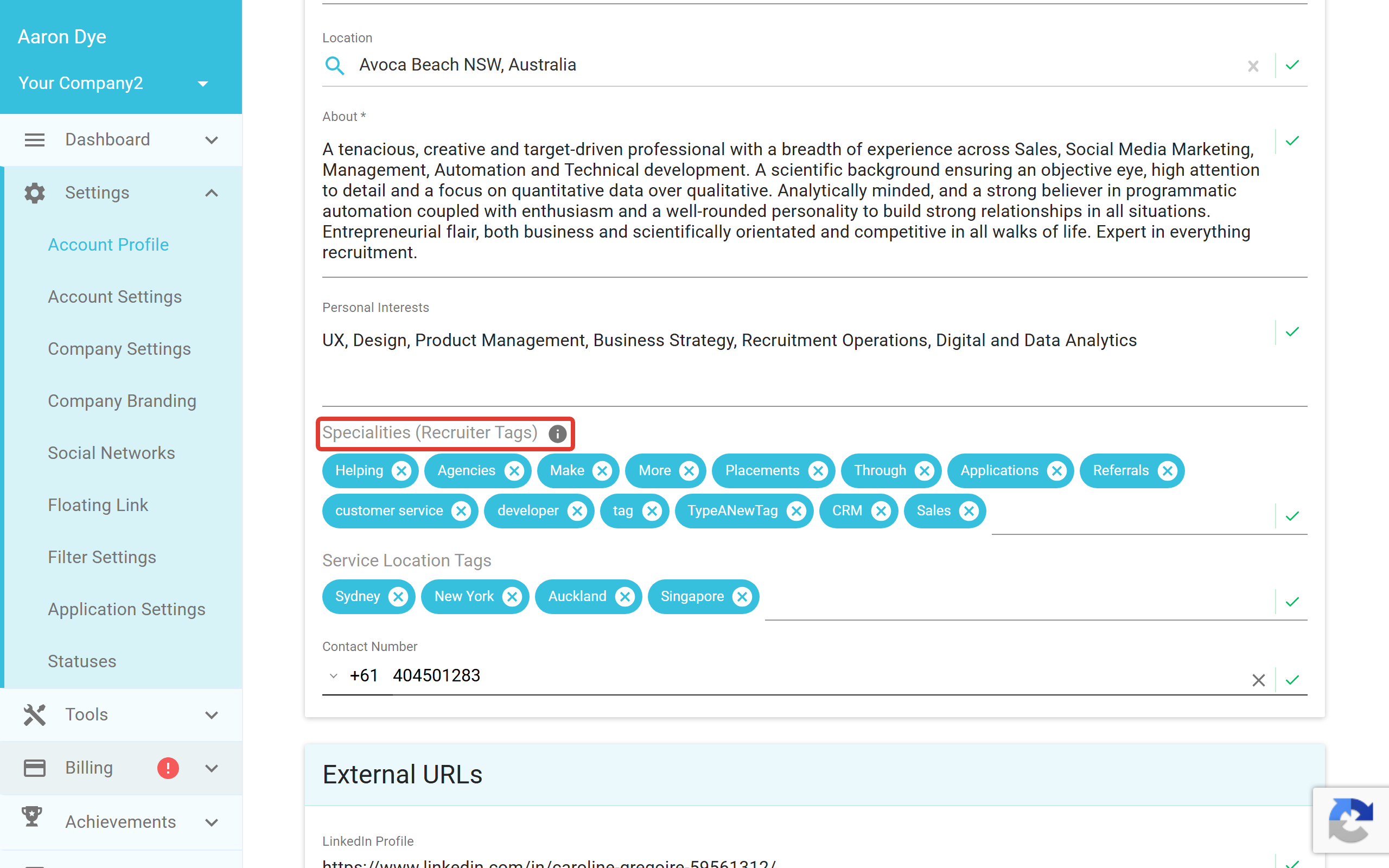
You can update any of the profile fields here, including their location, bio, contact details and their Specialities tags.
Step 5: Log out of their profile
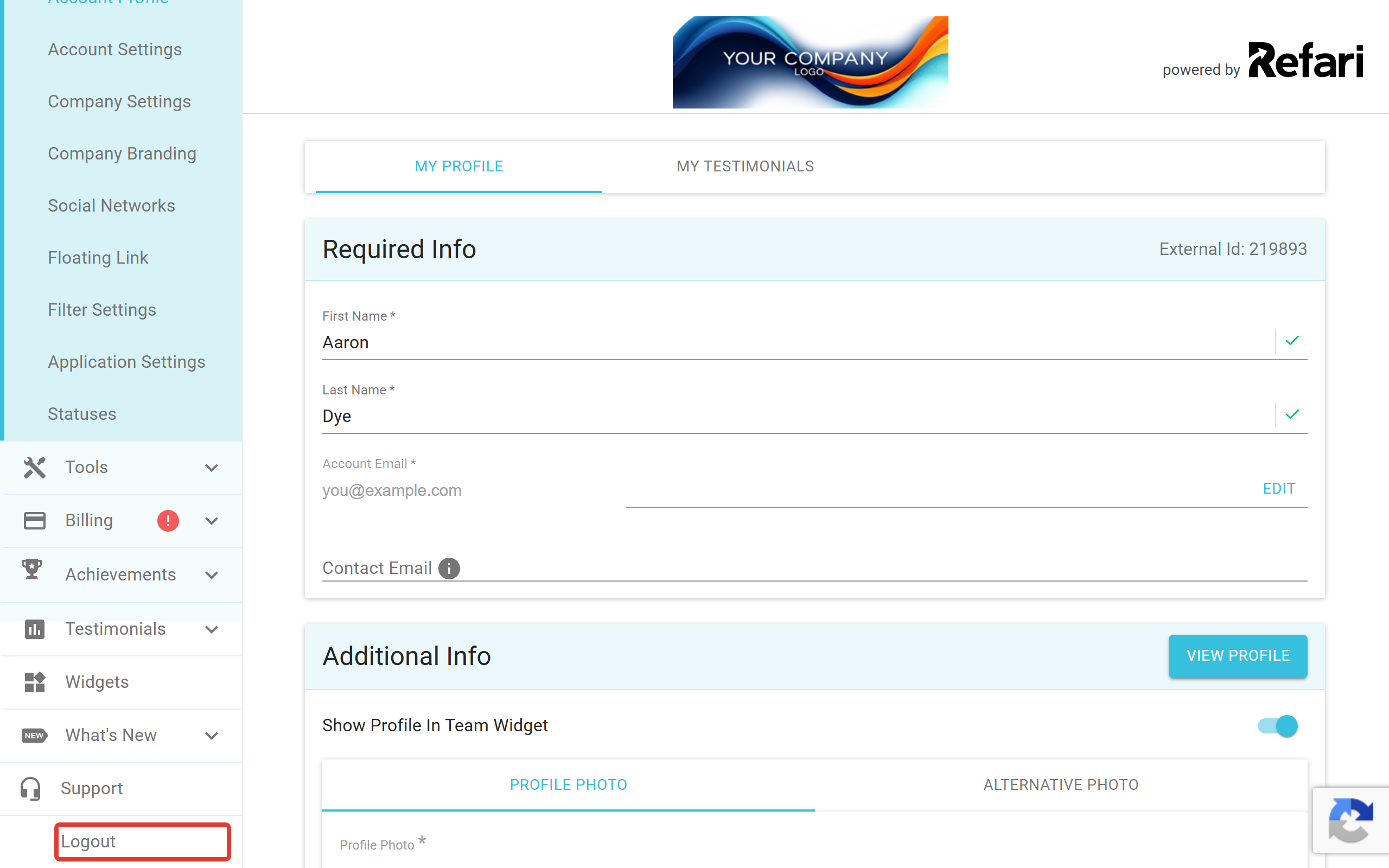
Once you have made your changes, use "Logout" in the sidebar to sign out of the team member's profile and return to your own admin account.
Final Notes
Always remember to log out once you have finished. If you stay signed in as a team member, any further changes you make will apply to their profile rather than your own.