
Refari
Adding or Removing Team Members from Widgets Without Deleting Them
https://help.refari.work/knowledge-base/article/adding-or-removing-team-members-from-widgets-without-deleting-them
This guide walks you through how to add a team member to your Meet The Team and Testimonials widgets, and how to hide someone from those widgets without deleting their Refari account. Hiding a team member is controlled by a single toggle on their profile, so you can show or hide them at any time while keeping their account, login and history intact.
Adding a team member
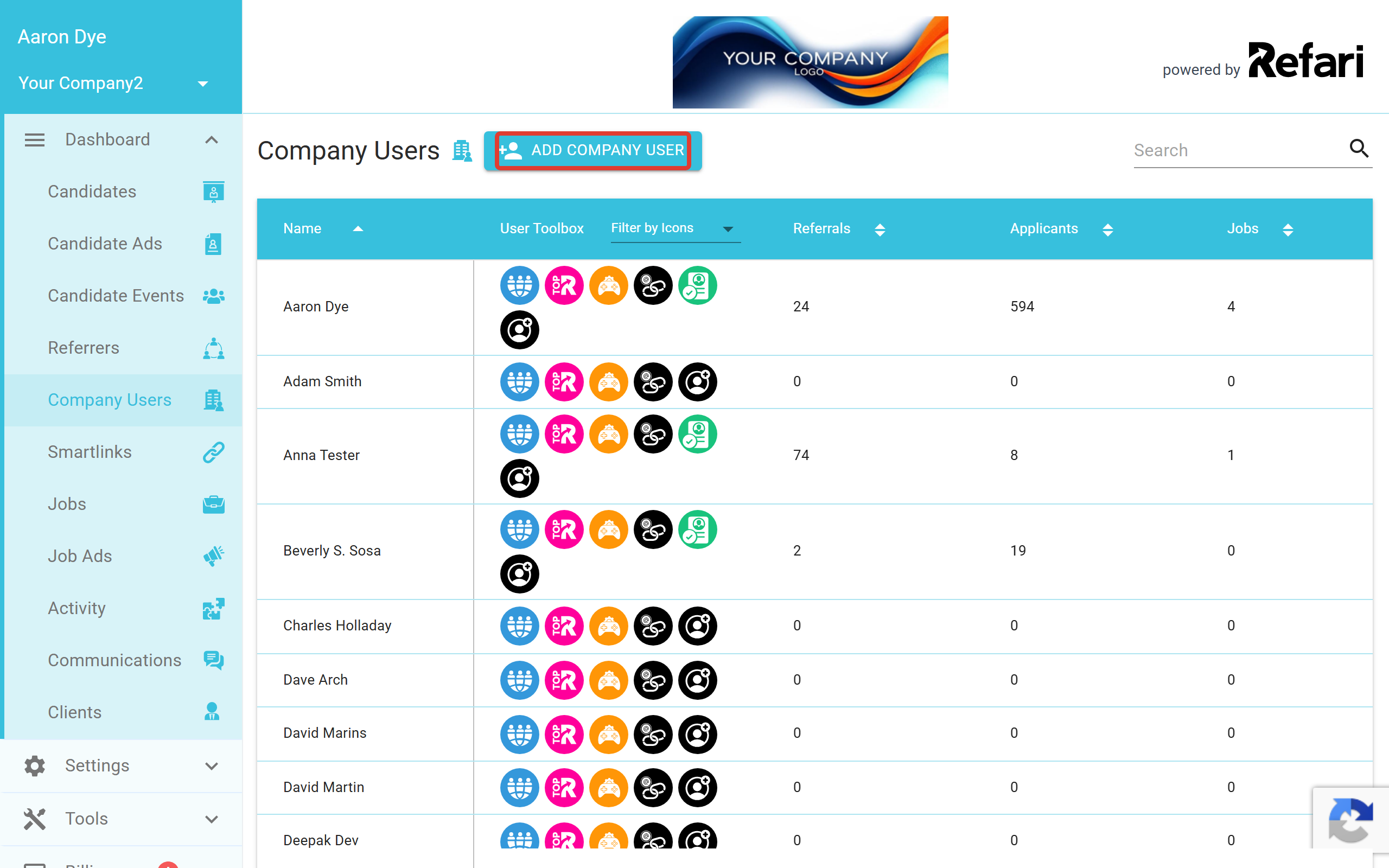
To add a new team member to your account, go to "Dashboard > Company Users" and select the ADD COMPANY USER button.
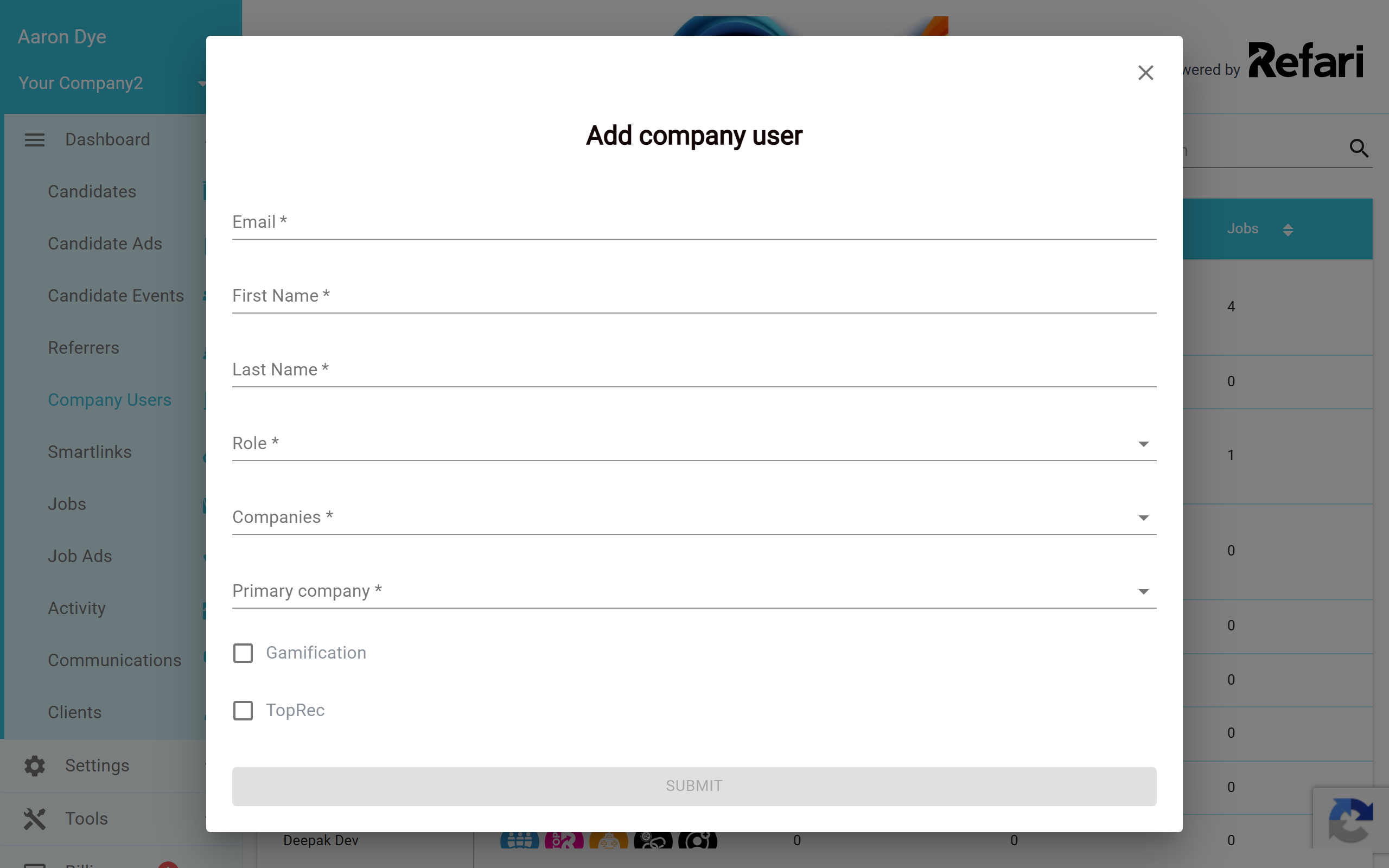
Complete the "Add company user" form with their details, including their first name, last name and email address.
Once the team member has been created and their profile has the basics filled in (a profile photo, a position and an "about" description), they will automatically appear in your Meet The Team widget. Add a testimonial to their profile and they will appear in your Testimonials widget too.
Removing a team member from the widgets without deleting them
If you want to take someone out of the Meet The Team and Testimonials widgets but keep their Refari account, you do not need to delete anything. There is a toggle on their profile that controls whether they are shown.
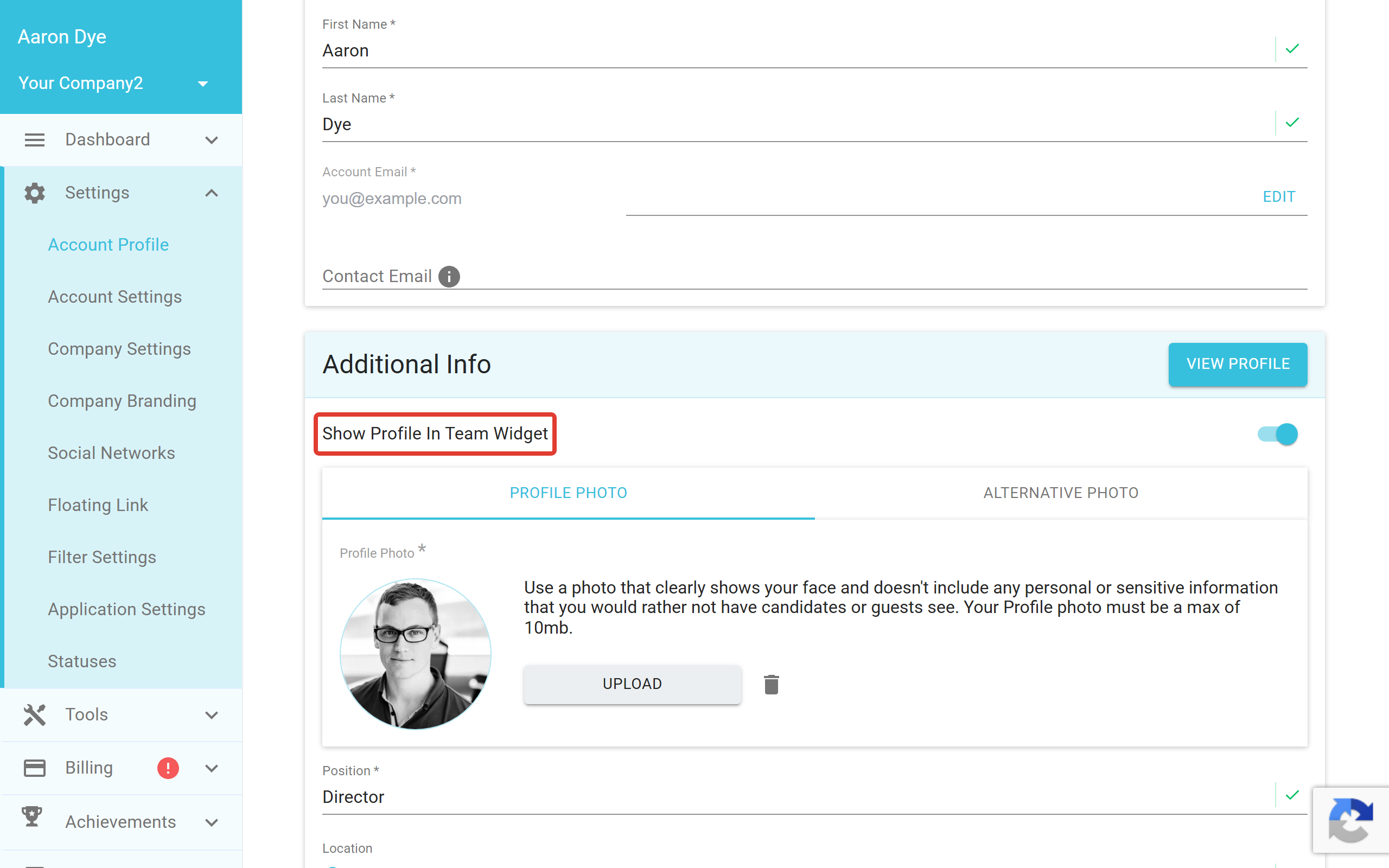
- Open the team member's profile under "Settings > Account Profile".
- Scroll to the Additional Info section.
- Switch the Show Profile In Team Widget toggle off to hide them, or on to show them.
How the two widgets are linked
The Meet The Team and Testimonials widgets share the same profile setting. Showing or hiding a team member with the Show Profile In Team Widget toggle affects both widgets at once, so you do not need to update each one separately.
Final Notes
Hiding someone from your widgets is fully reversible, so you can confidently show or hide team members as your team changes without losing any of their data. If you are not sure how to complete a profile, the "How to set up your profile" article below walks through each field in detail.